Artificial intelligence is changing how people create digital content, artwork and visual designs. You no longer need advanced graphic design skills or expensive software to turn a creative idea into an image. AI image generators make it possible to create visuals simply by describing what you want.
One platform gaining attention among AI creators is OpenArt AI. It helps users explore AI-powered image generation, experiment with different artistic styles, create characters and develop visual concepts using text prompts and other creative tools.
Whether you are a beginner, content creator, digital artist or marketing professional, OpenArt AI offers tools that can make the creative process easier.
In this guide, we will explore what OpenArt AI is, how its image generator works, its major features, practical uses, benefits, limitations and tips for getting better results.
What Is OpenArt AI Image Generator?
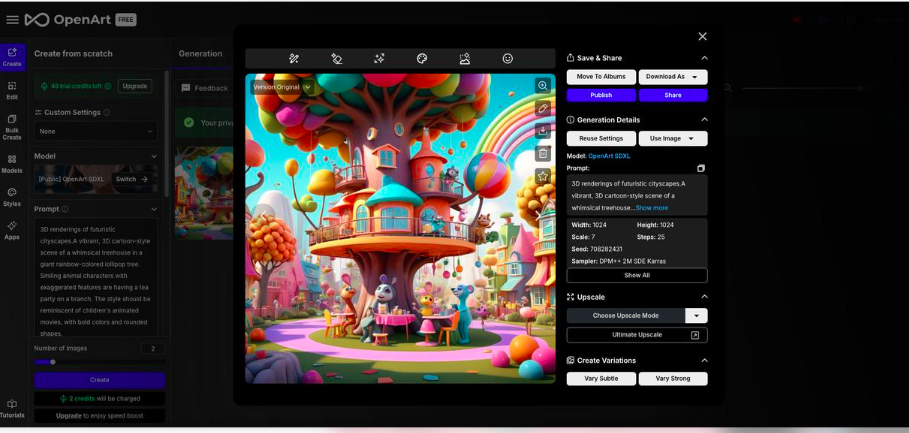
OpenArt AI is an online AI-powered creative platform designed to help users generate and edit visual content. It uses artificial intelligence models to turn written descriptions and visual references into digital images.
For example, you can enter a prompt such as "A futuristic city at sunset with flying cars and cinematic lighting." The AI interprets your description and generates an image based on the instructions.
Users can explore different visual styles, including:
Realistic photography
Digital illustrations
Anime and cartoon artwork
Fantasy and science-fiction scenes
Concept art
Character designs
Product-style visuals
The platform is useful for people who want to experiment with creative ideas without starting every design from scratch.
How Does OpenArt AI Work?
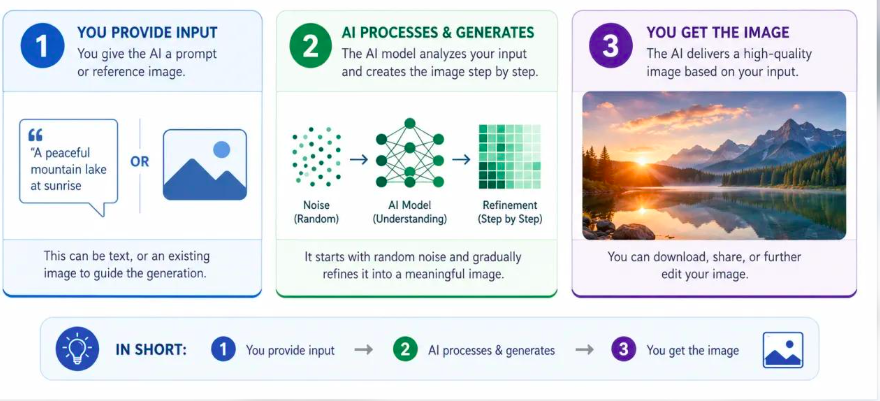
OpenArt AI uses generative artificial intelligence to understand prompts and create visual outputs. The process generally involves providing instructions, choosing generation settings and allowing the AI model to produce an image.
Here is how the process works:
1. Enter a Text Prompt
Describe the image you want to create. Include details about the subject, background, lighting, colours and artistic style.
2. Choose an Image Style
Select a suitable visual style or model based on the type of artwork you want to produce.
3. Adjust Generation Settings
Depending on the selected tool, you may be able to adjust image dimensions, quality, aspect ratio and other generation options.
4. Generate Your Image
Submit your prompt and let the AI process your instructions to create an image.
5. Edit and Refine the Result
Review the generated image. If it does not match your expectations, modify the prompt or use available editing tools to improve the result.
6. Save Your Creation
Once satisfied, export or download your image using the available options.
Key Features of OpenArt AI Image Generator
OpenArt AI offers several creative features that help users generate, customise and improve digital images. Its platform brings multiple AI models and editing options together, allowing creators to experiment without switching between different services.
1. Text-to-Image Generation
This is one of the main features of OpenArt AI. Users can convert written prompts into original images.
You can describe a person, landscape, product, building or fictional character, and the AI generates artwork based on your description.
Best for: Blog illustrations, social media graphics, digital artwork and creative concepts.
2. Multiple AI Models
OpenArt provides access to different image-generation models, each with its own strengths and visual style.
Depending on your project, you can explore models such as:
GPT Image
Nano Banana
Seedream
Recraft
FLUX
This flexibility helps users compare different results and select a model that suits their creative requirements. Model availability can change over time.
3. Image-to-Image Generation
OpenArt allows users to upload an existing image and use it as a visual reference for creating another version.
For example, you can upload a basic sketch and ask the AI to transform it into a detailed digital illustration. You can also use a reference image to guide the composition or appearance of a new creation.
4. AI Image Editing
Sometimes the generated image looks good, but a few details need improvement. OpenArt offers AI-powered editing options that help users modify existing visuals.
Depending on the available tool, you can:
Change image backgrounds.
Replace or modify selected elements.
Improve visual details.
Adjust image composition.
Create variations of an existing image.
5. Character Consistency
Character consistency is useful when creating stories, comics, animations or social media content.
Instead of generating a completely different-looking character every time, users can explore character-reference and consistency tools to maintain a similar appearance across multiple images.
This makes it easier to develop recurring characters for creative projects.
6. Image Upscaling
Low-resolution images may look blurry when enlarged. OpenArt's AI image upscaler helps improve image resolution and visual detail.
It can be useful for:
Improving older images.
Preparing visuals for larger screens.
Enhancing digital artwork.
Improving product images.
Creating sharper marketing visuals.
7. Image Variations
If you like an image but want to explore different versions, image variation tools can help.
You can experiment with different compositions, backgrounds, colours and visual details while maintaining the basic idea of your original image.
8. Aspect Ratio and Resolution Controls
Different platforms require different image dimensions. OpenArt provides output controls that help users prepare visuals for different purposes.
Examples include:
Format | Common Use |
|---|---|
1:1 | Instagram posts |
4:5 | Social media portraits |
9:16 | Stories and vertical content |
16:9 | Blog banners and YouTube thumbnails |
3:2 | Photography-style images |
Supported resolution and aspect ratios depend on the selected AI model. Some models support outputs up to 4K.
How to Use OpenArt AI Image Generator: Step-by-Step Guide
Creating images with OpenArt AI does not require professional design experience. Follow these steps to get started.
How to Use OpenArt AI Image Generator
Follow these simple steps to turn your ideas into creative AI-generated images.
Visit the OpenArt Website
Open the official website and create an account or sign in to access the available creative tools.
Visit OpenArt Website ↗Open the Image Generator
Navigate to the Create Image or AI Image Generator section. Choose the image-generation tool you want to use.
Write Your Prompt
Enter a clear description of the image you want to generate. Include details about the subject, setting, lighting and visual style.
A beautiful modern house surrounded by green mountains, morning sunlight, realistic architectural photography, natural colours, cinematic composition, ultra-detailed.
Select an AI Model
Choose a suitable model based on your requirements. Some models are better suited to realistic images, while others are useful for illustrations, graphic designs or creative artwork.
Adjust Image Settings
Select your preferred aspect ratio, resolution and other available generation settings before creating your image.
Generate the Image
Click the Generate option and wait for the platform to process your request. The generated results will appear once processing is complete.
Review and Download
Check the generated results. If necessary, edit your prompt, create variations or use available editing tools. Download your preferred image in a supported format.
Tutorial CompleteReady to Create Your First AI Image?
Start exploring creative possibilities with OpenArt AI.
Explore OpenArt AI ↗
Best Uses of OpenArt AI Image Generator
OpenArt AI can be useful for several creative and professional activities. Its different generation models and editing tools allow users to create visuals for personal projects and business requirements.
1. Social Media Content
Content creators can generate customised visuals for Instagram, Facebook, Pinterest and other platforms.
Instead of repeatedly using generic stock images, they can create artwork that matches their content style.
2. Blog and Website Images
Bloggers can create custom featured images, article illustrations and website banners.
For example, a travel blogger can generate a beautiful mountain landscape, while a technology website can create futuristic digital artwork.
3. Digital Art and Illustration
Artists can experiment with different artistic styles, explore new concepts and develop visual references.
It can also help beginners understand how different prompts influence the final artwork.
4. Product Photography
Businesses can use AI-generated product visuals to explore advertising concepts, backgrounds and lifestyle photography.
For example, a skincare brand might create a product scene featuring a bottle surrounded by flowers and natural ingredients.
5. Marketing and Advertising
Marketing teams can use AI visuals for promotional campaigns, advertisements, posters and creative presentations.
These images can help businesses explore different campaign ideas before investing in professional photography.
6. Character and Story Creation
Writers, game developers and digital storytellers can create fictional characters, fantasy environments and visual references for their projects.
OpenArt AI Pricing: Is It Free or Paid?
OpenArt offers free access with trial credits, along with paid subscription plans for users who need more generation capacity and additional features.
The paid plans are designed for different levels of creative activity.
Here is an overview of the plans displayed on its official pricing page:
Plan | Displayed Monthly Price |
|---|---|
Starter | $13 |
Plus | $27 |
Pro | $44 |
Wonder | $175 |
Prices shown reflect discounted monthly equivalents displayed on the pricing page at the time of research. Billing terms, promotions, regional pricing and plan details may change.
OpenArt AI Pricing Plans
Explore five subscription options for different creative needs.
Free Access
Explore AI tools and experiment with creative prompts.
BeginnersStarter Plan
More monthly credits and additional creative models.
Casual CreatorsPlus Plan
Higher generation limits for regular creative projects.
Regular CreatorsPro Plan
More credits and parallel generations for frequent users.
ProfessionalsWonder Plan
Substantial monthly credits and advanced generation features.
High-Volume UsersCheck the Latest Pricing
Prices, credit allowances and available features may change. Check the official OpenArt pricing page before choosing a subscription.
View Official Pricing →Benefits of Using OpenArt AI
OpenArt AI offers several advantages for people who regularly work with digital content and visual designs.
Quick Image Creation
Generate visual concepts in less time compared with creating every design manually.
Multiple Artistic Styles
Experiment with realistic photography, illustrations, anime, fantasy and more.
Different AI Models
Access multiple image-generation models from one creative platform.
Flexible Image Editing
Refine existing images, generate variations and improve visual quality.
Beginner-Friendly Experience
Create images using written descriptions without needing advanced graphic design skills.
Limitations of OpenArt AI
Although OpenArt AI offers useful creative features, there are a few things users should consider before relying on it for professional projects.
1. Credit Consumption: Image generation uses credits, and advanced models or settings may require more credits.
2. Inconsistent Results: Sometimes generated images may not accurately follow every instruction in the prompt.
3. Learning Curve: Beginners may need time to understand different models, settings and editing options.
4. Subscription Costs: Regular users may need a paid plan to access higher generation limits.
5. Copyright Considerations: Users should check the applicable usage rights and content policies before using generated images commercially.
6. Internet Requirement: OpenArt is an online platform, so users need an internet connection to access its generation tools.
Tips for Getting Better Results with OpenArt AI
The quality of an AI-generated image depends significantly on how clearly you describe your idea. These tips can help improve your results.
Tips for Getting Better Results with OpenArt AI
Use these simple techniques to improve your prompts and create more impressive AI-generated images.
Be Specific
Clearly describe the subject, background, colours and surroundings to guide the AI towards your desired result.
Mention the Art Style
Specify whether you want realistic photography, 3D artwork, anime or digital illustration.
Describe Lighting
Include details such as soft lighting, golden-hour sunlight or cinematic lighting for the right atmosphere.
Choose the Right Model
Experiment with different AI models to discover which one produces the best results for your project.
Use Reference Images
When supported, upload reference images to guide the composition, appearance and visual direction.
Refine Your Prompts
Make small changes to your instructions instead of completely rewriting them every time.
Experiment with different descriptions, styles and settings to discover what works best for your creative ideas.
OpenArt AI vs Other AI Image Generators
OpenArt is not the only platform available for AI image creation. Several other tools offer different approaches to generating digital artwork.
AI Tool | Main Strength |
|---|---|
OpenArt AI | Multiple models and creative tools |
Midjourney | Artistic and visually detailed images |
Adobe Firefly | Creative design and Adobe workflows |
Leonardo AI | Game assets and digital artwork |
Canva AI | Quick graphics and social media designs |
Which one should you choose?
Choose OpenArt if you want to explore multiple AI models and creative tools in one place.
Choose Midjourney if artistic image generation is your main priority.
Choose Adobe Firefly if you regularly work with Adobe creative applications.
Choose Leonardo AI if you focus on game assets and digital illustrations.
Choose Canva AI if you want to combine image creation with ready-made graphic design layouts.
Each platform has different pricing, features and usage policies, so compare them before selecting a subscription.
Is OpenArt AI Worth Using?
OpenArt AI is worth exploring if you want an accessible platform for generating and editing digital images.
Its biggest advantage is the ability to experiment with multiple AI models and creative tools without depending on a single image-generation engine.
For bloggers, designers, social media creators and digital artists, it can be a useful addition to an existing creative workflow.
However, it is important to consider credit limits, subscription costs and image usage rights before using it for regular commercial work.
Conclusion
OpenArt AI Image Generator makes digital creativity more accessible by allowing users to transform written ideas into visual content. From realistic images and digital illustrations to character creation and product visuals, the platform offers several ways to explore AI-powered creativity.
Its multiple AI models, image editing capabilities, reference-image support and upscaling features make it useful for beginners as well as experienced creators.
If you are looking for an AI platform to experiment with image generation and develop creative projects, OpenArt AI is worth trying.
FAQ'S
OpenArt AI is used to generate and edit images, create characters, develop digital artwork and produce other AI-powered creative content.
OpenArt offers free access with trial credits. Users can purchase paid subscriptions for additional credits and features.
Yes. It provides access to AI models designed to create realistic photographs, portraits, product images and other visual content.
Yes. It offers image editing, variations, background changes and other tools, depending on the selected feature.
Yes. Beginners can create images by entering simple text descriptions without requiring professional graphic design experience.
Sources and notes
Links the author listed for this post.
Information is based on OpenArt's official website, product documentation and pricing information.


Discussion
0 comments
No comments yet
Discussion will appear here once it loads.