Loading page

Trusted for 100K+ Mailbox Runs
EMAIL AUTOMATIONCONTROL EVERY RUN
Automate unread message scanning, custom reading dwell times, campaign link actions, and multi-profile inbox warm-up directly inside your Chrome browser.
How it works
From inbox to
completed run.
0101UNREAD QUEUE · PAGINATION AWARESTEP 01 · DISCOVERY & BUFFER
Scan
Scan & Buffer
Find unread messages inside the signed-in mailbox. ERA walks the inbox and builds an unread queue from what is actually rendered.
0202CAMPAIGN · SENDER · DOMAIN · DATESTEP 02 · PRECISION MATCHING
Filter
Filter & Target
Apply campaign, sender, domain, or date rules. The unread queue is reduced to the messages your run actually targets.
0303OPEN · READ · ACTIONSTEP 03 · EXECUTION & DWELL
Process
Process & Interact
Open messages and perform configured actions — dwell for the reading time, open links, or send a reply, with delays between steps.
0404LOCAL ACTIVITY HISTORYSTEP 04 · LOCAL VERIFICATION
Track
Track & Audit
Record activity and completion status. Every step lands in a local activity history with timestamps and per-message outcomes.
Run state · Step 01
mail.google.com
Inbox12 unread
Aster Labs
Spring Release — Campaign Brief— Your weekly product digest from Aster…Brevo · Spring Promo
09:41
Priya Nair
Re: Invoice #1187— Thanks, attaching the signed copy…
09:38
Loopwork
You were selected: April onboarding— Complete your setup in two steps…Brevo · Spring Promo
09:24
Northwind Team
Weekly sync notes— Notes from Monday's call are…
08:57
Sender Hub
April campaign performance— Open rates for your segment…Brevo · Spring Promo
08:15
Supported mailboxes
One workflow.
Multiple mailboxes.
The same run configuration works across five webmail providers. Underneath, ERA adapts to how each inbox actually renders messages.
Inbox — Gmail
mail.google.com
Inbox12 unread
Aster Labs
Spring Release — Campaign Brief— Your weekly product digest from Aster…
09:41
Priya Nair
Re: Invoice #1187— Thanks, attaching the signed copy…
09:38
Loopwork
You were selected: April onboarding— Complete your setup in two steps…
09:24
Northwind Team
Weekly sync notes— Notes from Monday's call are…
08:57
Sender Hub
April campaign performance— Open rates for your segment…
08:15
1–50 OF 312
NEWEROLDER
PAGINATED INBOXmail.google.com
Unread messages are collected page by page. The extension walks the inbox pagination, then returns to page one before starting the run.
Support behavior varies by provider. Not every automation feature behaves identically across mailboxes.
ESP Connector
Connect campaigns to the inbox.
Connect your ESP to pull active campaigns, apply sender filters, and narrow your unread queue automatically. No manual rule-building.
ESPLIVE
Brevo
CAMPAIGNS
Awaiting handshake
SENDER FILTER
campaigns@loopwork.co
RUN QUEUE
Idle
ESP CONNECTOR
TEST THE CONNECTION TO VERIFY CREDENTIALS
Proxy manager
Route each account with control.
Configure how browser traffic leaves the machine — per Chrome profile. Switch between direct, shared, and per-account routing without touching run settings.
Each account is assigned its own proxy. Routes stay isolated per Chrome profile.
Proxy configuration is profile-scoped and applies to browser traffic during runs. ERA makes no anonymity or evasion guarantees.
ROUTING TOPOLOGYPER ACCOUNT MODE
3 ACCOUNTS → 3 PROXIES → PROVIDER
Automation controls
Fine-tune every run.
Timing, limits, filters, and behaviors — tuned per run. Change a setting and watch the simulated run respond.
RUN PARAMETERSCHROME PROFILE SCOPED
Reading Time6 s
Next Email Delay3 s
Email Limit8
Behaviors
RUN SIMULATIONIDLE
EST. RUN TIME 00:516 MATCHED / 8 LIMIT
01Aster LabsQUEUED
02LoopworkQUEUED
03Sender HubQUEUED
04Helio CommerceQUEUED
05Field & FormQUEUED
06BrightlineQUEUED
07NorthwindQUEUED
08Studio 29QUEUED
Configure settings, then simulate a run.
WarmTalk
Keep your own mailboxes talking.
An optional loop between two mailboxes you own — messages sent inside a defined window, opened, and replied to with a configurable probability. Dry Run simulates the loop end to end.
WARMTALK LOOPDRY RUN — SIMULATED
A → B — “Quick question”SIMULATED
NOT SENT · PREVIEW ONLY
WARMTALK SETTINGS
Sending Window
–
Daily Cap
Weekly Cap
Reply Probability35 %
Subject Templates
Body Templates
Dry Run walks the full loop and renders simulated messages. Nothing is sent.
WarmTalk exchanges messages between mailboxes you own. It does not improve or guarantee deliverability outcomes.
Activity history
See every run.
Each scan, open, and action is recorded locally with a timestamp. Runs are auditable — nothing happens silently.
era — run.log · session 09:42
09:42:12[PROXY]Account connected — profile routed
09:42:14[GMAIL]Scanning inbox — page 1 of 3
09:42:15[ESP]Campaign matched — Brevo · Spring Promo
09:42:16[GMAIL]Opening message 1 of 4
09:42:22[GMAIL]Reading complete — 6s dwell
09:42:24[ACTION]Link opened — tracking recorded
09:42:29[GMAIL]Run complete — 4 processed, 0 failed
—saved to local history
RUN SUMMARY
0
Emails scanned
0
Matched
0
Processed
00:00
Duration
Scanned12
Matched4
Processed4
Fleet deployment
Scale across Chrome profiles.
Separate accounts can run at the same time in separate Chrome profiles — storage and proxy configuration are scoped to the profile, so settings never bleed across accounts. Each license covers 2 profiles.
GOOGLE CHROME4 profiles · 2 licenses
Each license activates on up to 2 devices, and every Chrome profile counts as one device — the 4 profiles shown here would use 2 licenses. To move a license, deactivate the old profile from inside the extension. Beyond that, fleet size is bounded by your machine.
Local-first architecture
Runs where your mail already lives.
YOUR CHROME
EMAIL AUTOMATE
EXECUTES IN-PROFILE · LOCAL STORAGE · LICENSE CHECKED ONLINE
SIGNED-IN WEBMAIL
GmailOutlookYahooAOLProton
01
Local execution
Runs inside Chrome.
The extension executes in the browser profile you launch it from.
02
Existing sessions
Works through signed-in webmail sessions.
No mailbox passwords, tokens, or credentials are requested.
03
Online license check only
Automation stays local; the license is verified online.
Activation and periodic re-checks send your license email, license key, a random per-profile device ID and the extension version to the Email Automate license server. Configuration and activity history stay in your Chrome profile.
Payments are processed by Razorpay — card details are handled by Razorpay and never touch our servers.
This is an architectural description — not a guarantee of privacy or security outcomes.
Installation
Ready in a few steps.
Email Automate ships as a ZIP that you load into Chrome as an unpacked extension — it isn't on the Chrome Web Store. Download it right after payment or from your license email, then activate it with your purchase email and license key.
01
Download the ZIP
Right after payment, or from the link in your license email.
02
Enable Developer Mode
Open chrome://extensions and switch Developer Mode on.
03
Load unpacked
Select the extracted email-automate folder. Keep it somewhere permanent — updates go into the same folder.
04
Activate
Open the extension and enter your purchase email and license key.
chrome://extensions
Load unpacked Pack extension Update
Developer mode
~/Downloads/email-automate/
email-automate.zipZIP
Illustration — file names and version details in your browser will differ.
Already bought it?
Download again
Enter the email you bought Email Automate with and your license key to get a new download link.
- Your license key is in the license email we sent after your purchase.
- You always get the current version of Email Automate.
- Links are short-lived — request a new one whenever you need it.
Setup guide
From ZIP to first run.
Eight steps to your first run, then two optional extras. Email Automate installs as an unpacked Chrome extension, so the folder you extract it to matters — everything else is a few clicks.
Part 1
Install
Chrome loads the extension from a folder on your machine.- 01
Download the ZIP
Straight after payment, or from the link in your license email. Those links are short-lived — use Download again above whenever you need a fresh one.
- 02
Extract it somewhere permanent
Unzip it into a folder you will not move, rename or clear out — your Documents folder rather than Downloads. Chrome reads the extension from this folder every time it starts.
Don't run it from inside the ZIP, and don't leave it in a temp folder. If the folder goes, the extension goes with it.
- 03
Open chrome://extensions and turn on Developer mode
Paste chrome://extensions into the address bar. The Developer mode switch sits in the top-right corner of that page.
- 04
Click Load unpacked and choose the folder
Pick the extracted email-automate folder itself — the one with manifest.json directly inside it, not the folder holding it.
- 05
Pin it to your toolbar
Click the puzzle-piece icon in Chrome's toolbar, then the pin beside Email Automate. It opens in the side panel, next to whichever mailbox you are on.
Part 2
Activate
One license, checked online. Everything else stays in your profile.- 06
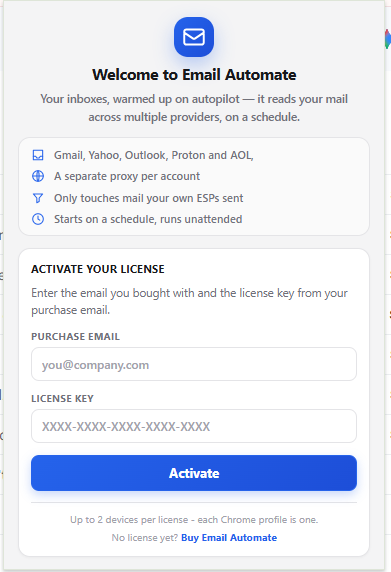
Enter your purchase email and license key
Open the extension and fill in the email you bought with, plus the license key from your license email. Click Activate.
One license activates up to 2 Chrome profiles — each Chrome profile counts as one device.
Part 3
First run
It works through the mailboxes you are already signed in to.- 07
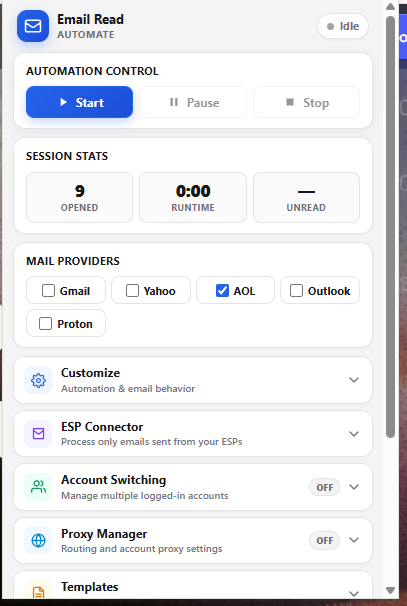
Choose your mail providers
Tick the mailboxes this run should cover — Gmail, Yahoo, AOL, Outlook or Proton. Sign in to each of them in this Chrome profile first; the extension works through your existing sessions and never asks for a mailbox password.
- 08
Press Start
Open the mailbox tab and hit Start. Session stats — opened, runtime, unread — tick over live, and every step is written to the local activity history.
Part 4
Going further
OptionalOptional — the run works without any of this.- 09
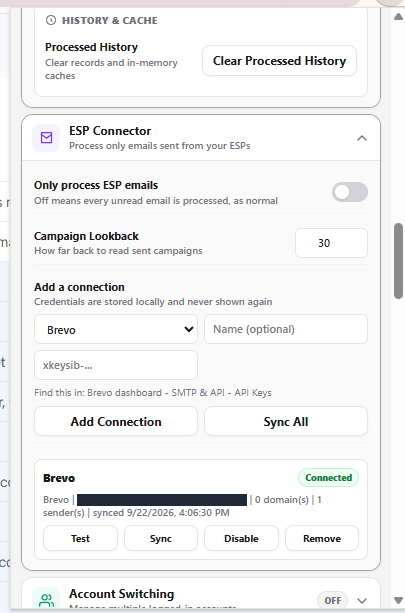
Connect an ESP
Open ESP Connector, pick your provider and paste its API key — Brevo's lives under SMTP & API → API Keys. Campaign Lookback sets how far back sent campaigns are read. Keys are stored in your Chrome profile and never shown again.
Leave “Only process ESP emails” off and every unread message is processed as normal. Turn it on to narrow a run to mail your own ESPs sent.
- 10
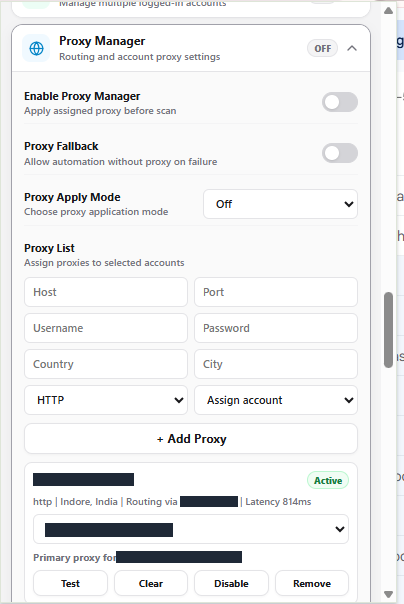
Route accounts through proxies
Proxy Manager applies a proxy to the Chrome profile before a scan begins. Add a host, port and credentials, then assign it to an account — or leave the whole thing off and traffic goes out directly.
Proxy configuration is profile-scoped and applies to browser traffic during runs. It makes no anonymity guarantee.
If something goes wrong
That's expected. Email Automate isn't distributed through the Chrome Web Store, so Chrome flags every unpacked extension this way. Dismiss the bar and carry on — just don't click Remove.
Its folder was moved, renamed or deleted. Put the folder back where it was — or extract the ZIP again somewhere permanent — then load it unpacked once more.
Download the current ZIP, extract it over the same folder, then click Reload on the extension's card in chrome://extensions. Loading a fresh copy from a different folder registers as another device instead of an update.
A license covers up to 2 Chrome profiles. Open the extension on a profile you no longer use and choose Deactivate this device — that frees its place for a new one.
Check three things: the provider is ticked in the panel, you're signed in to that mailbox in this Chrome profile, and the mailbox tab is open. If the ESP Connector is on, only mail sent by your connected ESPs will match.
Pricing
Email Automate
$99 USD
One-time payment · Lifetime license · 2 devices
No subscription and no renewals. Download the extension right after payment — your license key and a download link are also emailed to you.
Secure checkout by Razorpay — card details never touch our servers.
Lifetime license — no renewals
Use on up to 2 devices (Chrome profiles)
Chrome extension (ZIP download)
Email automation runs
Supported mailbox providers
ESP Connector
Proxy Manager
Automation controls
WarmTalk
Activity history
Fleet deployment tools
Download again any time with your license
FAQ
Questions,
answered.
The operational details — licensing, providers, sessions, proxies, and what happens when webmail interfaces change.
Email Automate is a Chrome extension that operates on the webmail tabs you are already signed in to. It scans the rendered inbox for unread messages, applies your campaign and sender filters, opens matching messages, waits for your configured reading time, performs optional actions such as link opens or replies, and records each step in a local activity log.
Gmail, Yahoo, AOL, Outlook, and Proton. Provider behavior differs: Gmail is processed through pagination, Yahoo and AOL through continuous scrolling, Outlook through a virtualized scrolling list, and Proton on the first rendered screen after local decryption.
No. The extension runs inside your existing signed-in browser sessions. It never asks for, stores, or transmits your mailbox credentials.
The Proxy Manager sets the proxy configuration of the Chrome profile it runs in. You can route traffic directly, share one proxy across accounts, or assign a dedicated proxy per account. Proxy configuration is profile-scoped and applies to browser traffic during runs.
WarmTalk is an optional two-mailbox messaging loop between mailboxes you own. Mailbox A composes a message to Mailbox B within a defined sending window, Mailbox B opens and can reply with a configurable probability, all within daily and weekly caps. A dry-run mode simulates the loop without sending anything.
Yes. Extension storage and proxy configuration are scoped to the Chrome profile, so separate profiles can run separate accounts at the same time without sharing settings. One license activates up to 2 Chrome profiles — each profile counts as one device.
Webmail interfaces change regularly. If a run cannot locate expected elements, it stops safely, records the failure in the activity log, and can retry based on your retry settings. Fixes for interface changes are released as new versions of the extension, which you can download with your license at any time.
Any automated activity in a mailbox may be subject to your provider's terms of service and abuse detection. The extension ships conservative defaults — reading times, delays, limits — but you are responsible for configuring runs that comply with your provider's policies. No outcome can be guaranteed.
A one-time payment for a lifetime license — there is no subscription and nothing renews. The license activates the extension on up to 2 devices, where each Chrome profile counts as one device. Payments are processed by Razorpay: card details go to Razorpay and never reach our servers.
Right after payment you can download the extension as a ZIP, and your license email contains your license key and a download link. Extract the ZIP, open chrome://extensions, turn on Developer mode, click Load unpacked and select the extracted email-automate folder. Then open the extension and enter your purchase email and license key. Keep that folder in a permanent place: to update, copy a new version over it and click reload in chrome://extensions — a copy loaded from a different folder counts as another device. The extension is not listed on the Chrome Web Store.
Yes. Open the extension on the device you no longer use and choose Deactivate this device. That frees its place, and you can activate another Chrome profile with the same email and license key.
Use Download again on this page with your purchase email and license key to get a fresh link to the current version. Download links expire, so request a new one whenever you need it.
Your inbox. Your rules.
Email Automate$99One-time paymentLifetime license2 devices
Pay once with Razorpay and download right after payment. Your license key is emailed to you.