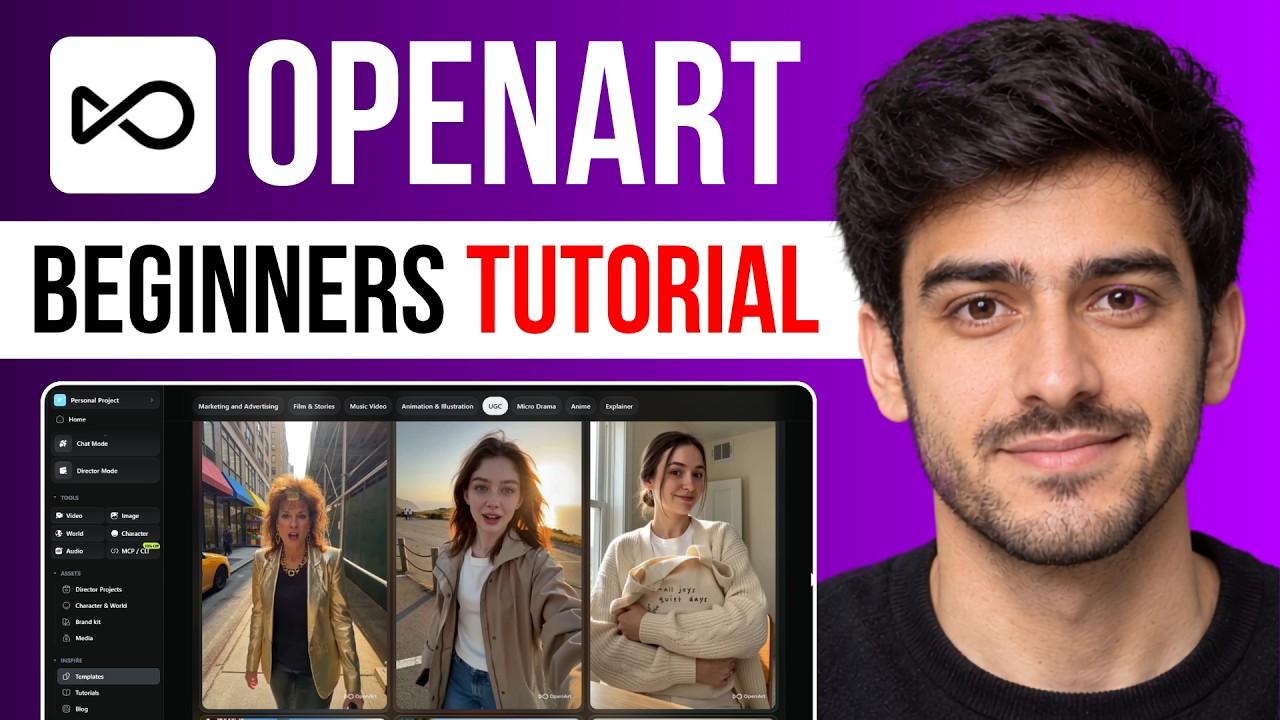
Imagine typing a single sentence and getting a finished image, then turning that image into a short video and keeping the same character in every scene. A few years ago that meant juggling several apps and subscriptions. Today, OpenArt AI aims to put it all in one place.
If you are a blogger who needs featured images, a small business owner making social media posts, or just curious about AI art, this guide is for you. You will learn what OpenArt AI is, how its features work, what it costs, who it suits and how to get your first result today.
In this guide:
What OpenArt AI is
Key features
How to use it step by step
Best uses
Benefits
Pricing and credits
Pros and cons
How to choose an AI art tool
Tips for better results
Safety and legal basics
FAQs
OpenArt AI at a Glance
Question | Quick answer |
|---|---|
What is it? | An all-in-one AI platform for creating images, video and audio |
Who is it for? | Bloggers, marketers, designers, storytellers, students and hobbyists |
How many models? | More than 100 image, video and audio models in one workspace |
Free option? | A small free trial credit grant |
Starting price | Paid plans from about $14 a month |
Where does it run? | In your web browser, with no installation |
What Is OpenArt AI?
OpenArt AI is a browser-based creative platform that lets you generate and edit images, videos and audio from text prompts and reference pictures. You describe what you want, choose an AI model, and the platform creates it.
What makes it different is the choice of models. Instead of relying on a single engine, OpenArt gives you access to many models from major AI companies in one account. Think of it like a streaming service for AI art tools: one login, many options.
Because it brings several tools together, it also adds extras many beginners value, such as character consistency, editing tools and story creation.
How Does OpenArt AI Work?
The basic process is simple:
You write a prompt, or upload a reference image.
You pick an AI model suited to the job, such as a realistic image model or a video model.
The platform shows the credit cost.
You click generate and wait for the result.
You edit, regenerate or download it.
OpenArt runs on a credit system. Each generation uses credits, and more complex jobs, like video, usually cost more. The platform shows the cost before you generate, and credits are returned if a generation fails.
Which AI Models Does OpenArt Use?
OpenArt is an independent platform that connects to models built by major AI companies. Examples have included video models such as Seedance, Kling and Veo, and image models such as GPT Image, Nano Banana and Seedream.
Type | Examples | Best for |
|---|---|---|
Image models | GPT Image, Nano Banana, Seedream, Flux | Illustrations, product visuals, blog graphics |
Video models | Seedance, Kling, Veo | Short clips, ads, animated scenes |
Audio tools | Voice and music generators | Narration, background sound |
Model lists change often, so check the platform for what is available today.
Key Features of OpenArt AI
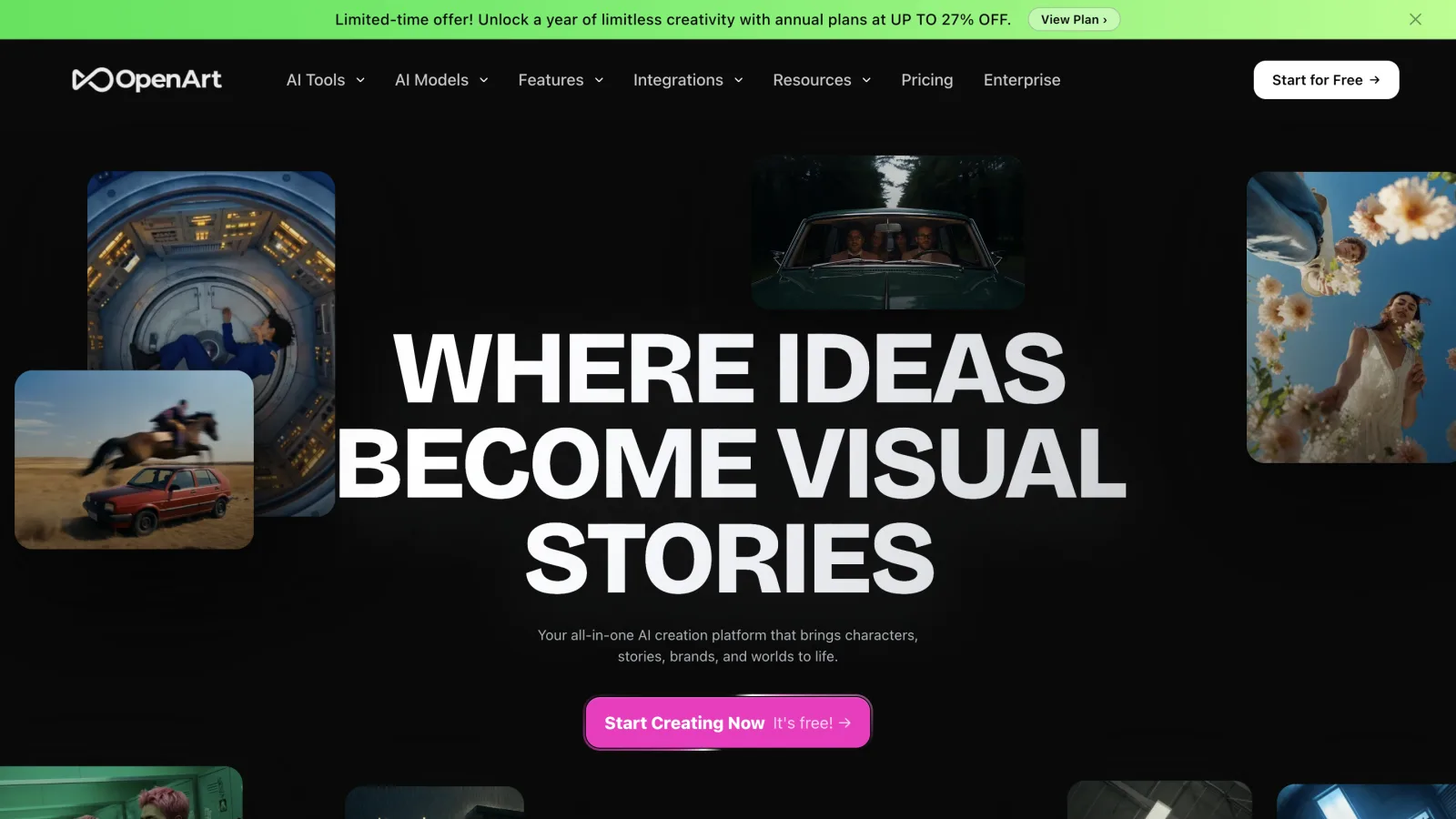
1. Text-to-Image Generation
Type a description and get an image. This is the starting point for most people and works well for blog covers, social posts and concept art.
2. Image-to-Image and Reference Uploads
Upload a photo or sketch to guide the result. This helps when you want a specific pose, layout or style.
3. Image-to-Video
Turn a still image into a short moving clip. A product photo, for example, can become a simple promo animation.
4. Director and Multi-Scene Video
The Director tool helps you build longer videos made of several scenes, up to a few minutes long. It suits story-based content and ads.
5. Consistent Characters
Keeping the same face, outfit and style across many images is one of the biggest challenges in AI art. OpenArt includes tools to create a character and reuse it in later images and videos. That helps with comics, mascots and storytelling.
6. Custom Model Training
You can train a personalized model using your own images to capture a particular style, object or character. This is an advanced feature. Only use images you own or have permission to use.
7. Built-In Editing Suite
Editing tools include inpainting (changing part of an image), outpainting (extending it), background replacement and object removal. You can fix a small problem instead of starting over.
8. Audio and Music
OpenArt also supports audio, so you can add sound or voice to a project without jumping to another app.
9. One-Click Story Creation
Turn an idea into a short, multi-scene story with less manual work.
10. Automation for Advanced Users
An integration called OpenArt MCP lets AI agents and other tools connect to the platform. Most beginners can ignore it at first.
Feature Summary
Feature | What it does | Difficulty |
|---|---|---|
Text to image | Creates images from words | Easy |
Reference uploads | Guides style or layout | Easy |
Image to video | Animates still images | Easy |
Director | Builds longer multi-scene videos | Medium |
Consistent characters | Keeps characters the same | Medium |
Custom models | Learns your own style | Advanced |
Editing suite | Fixes or extends images | Easy |
Audio | Adds sound and voice | Medium |
MCP automation | Connects other tools | Advanced |
How to Use OpenArt AI: A Beginner’s Step-by-Step Guide
Step 1: Create an Account
Sign up in your browser. You can start with the free trial credits.
Step 2: Choose What You Want to Make
Pick an image, video or audio project. Beginners should start with a simple image.
Step 3: Write a Clear Prompt
A good prompt tells the AI what to show and how it should look. Use this formula:
Prompt part | Example |
|---|---|
Subject | A friendly robot barista |
Setting | In a small cafe on a rainy evening |
Style | Soft watercolor illustration |
Lighting | Warm window light |
Details | Steam from the cup, wooden counter |
Full prompt: “A friendly robot barista in a small cafe on a rainy evening, soft watercolor illustration, warm window light, steam from the cup, wooden counter.”
Step 4: Pick a Model and Check the Cost
Try the same prompt in two or three models. Compare the results and the credit cost.
Step 5: Refine
Change one thing at a time, such as colour, lighting or camera angle. That shows you what each change does.
Step 6: Edit and Download
Use the editing tools for small fixes, then download your image or video.
Best Uses of OpenArt AI
Who | How they use it |
|---|---|
Bloggers | Featured images, section graphics and Pinterest pins |
Marketers | Ad concepts, banners and short promo videos |
Small businesses | Social media posts, product mockups and mascots |
Designers | Moodboards, quick concepts and style tests |
Storytellers | Comic panels, children’s story scenes and character sheets |
Students and hobbyists | Learning AI art and experimenting |
Workflow 1: Blog Featured Image in 10 Minutes
Write a prompt based on your article’s main idea.
Generate four options in one model.
Choose the best, then use inpainting to remove anything odd.
Add your title text in a design tool.
Save it in the right size and add alt text.
Workflow 2: A Short Social Video
Generate a strong still image.
Turn it into a short clip with image-to-video.
Add music or sound.
Export and post.
Benefits of Using OpenArt AI
Saves money. One subscription can replace several separate tools.
Saves time. You can go from idea to image in minutes.
Lowers the skill barrier. You do not need design software skills.
Offers choice. If one model gives a poor result, you can try another.
Supports consistency. Character tools help brand and story projects.
Combines tools. Image, video, audio and editing live in one workspace.
OpenArt AI Pricing and Credits
Plan type | What to expect |
|---|---|
Free trial | A small one-time credit grant |
Entry paid plan | From about $14 a month |
Higher tiers | More credits, more simultaneous generations and extra features |
Annual billing | Discounts of up to about 27% depending on the tier |
Plan names, prices and credit amounts differ between sources and change often. Always check the official pricing page before you subscribe. Start with a monthly plan if you are unsure, because credits can be used faster than expected, especially with video.
OpenArt AI Pros and Cons
Pros | Cons |
|---|---|
Large library of models | Credit costs can add up |
Beginner-friendly interface | Prompts take practice |
Character consistency tools | Output quality varies by model |
Custom model training | Commercial and video limits depend on the plan |
Built-in editing suite | Some users report frustration with credits and refunds |
One account for many tools | Less distinctive artistic style than some specialist tools |
How to Choose an AI Art Tool
If you want... | Look for... |
|---|---|
Variety | A platform with many models |
A single strong artistic look | A tool known for that style |
Predictable costs | Clear credit rules and a monthly plan |
Video and images together | A platform that supports both |
Brand characters | Consistent-character features |
OpenArt suits people who value flexibility. If you only want one specific artistic look, a specialist tool may fit better.
Tips for Getting Better Results
Be specific. “Golden retriever puppy on a sunny beach, photo style” beats “dog.”
Name the style. Photo, watercolor, 3D render, anime or flat vector.
Describe lighting. Soft morning light, neon glow, studio lighting.
Use negative detail carefully. If the tool allows it, say what to avoid.
Generate several options. Pick the best and refine.
Keep a prompt notebook. Save prompts that worked.
Check small details. Hands, text and logos can come out wrong.
Is OpenArt AI Safe and Legal to Use?
AI platforms raise fair questions. Here are the basics:
Read the terms. Check what you may do with generated content, especially for business use.
Respect copyright. Do not copy another artist’s protected style or work on purpose.
Be careful with real people. Do not make misleading images of real people without permission.
Label AI content when needed. Some clients and platforms expect disclosure.
Protect private images. Avoid uploading sensitive photos.
Common Mistakes Beginners Make
Using vague prompts and expecting perfect results.
Spending all credits on one model without testing.
Skipping the cost check before generating video.
Ignoring licence terms.
Publishing images without checking details.
FAQs
It is used to create and edit AI images, videos and audio for blogs, ads, social media, stories and design concepts.
You can try it with a small free credit grant. Ongoing use needs a paid plan.
Paid plans start at around $14 a month, with discounts for annual billing. Check the official site for current prices.
Yes. It supports image-to-video and multi-scene video creation.
No. A clear text prompt is enough to begin.
Sources and notes
Links the author listed for this post.
This article is based on information from OpenArt’s own website and blog and on independent reviews and overviews published in 2026, including pieces from The Rundown AI, DroidCrunch, The AI Future, AI Blog First, AI Stacker and G2. Features, model names, credit allowances and prices change often, and sources report different plan names and amounts. Please check OpenArt’s official pricing and terms pages before publishing or subscribing. This post is general information and is not a paid endorsement. It has no affiliation with OpenArt.


Discussion
0 comments
No comments yet
Discussion will appear here once it loads.