Applying for an exam can already involve enough steps: filling out the form, checking eligibility, uploading documents, paying the application fee, and making sure every detail is correct. Then comes the photo requirement.
A photo may look like a small part of an application, but it can become a frustrating step when the image is too large, has the wrong dimensions, uses an unsupported format, or does not meet the application's requirements.
That is where an Exam Photo Maker can make the process easier.
An online exam photo maker helps you prepare a suitable photo for exam forms, admission applications, registrations, identity-related forms, and other online applications. Instead of opening complicated photo-editing software and trying to figure out dimensions yourself, you can prepare the image through a simpler online workflow.
What Is an Exam Photo Maker?
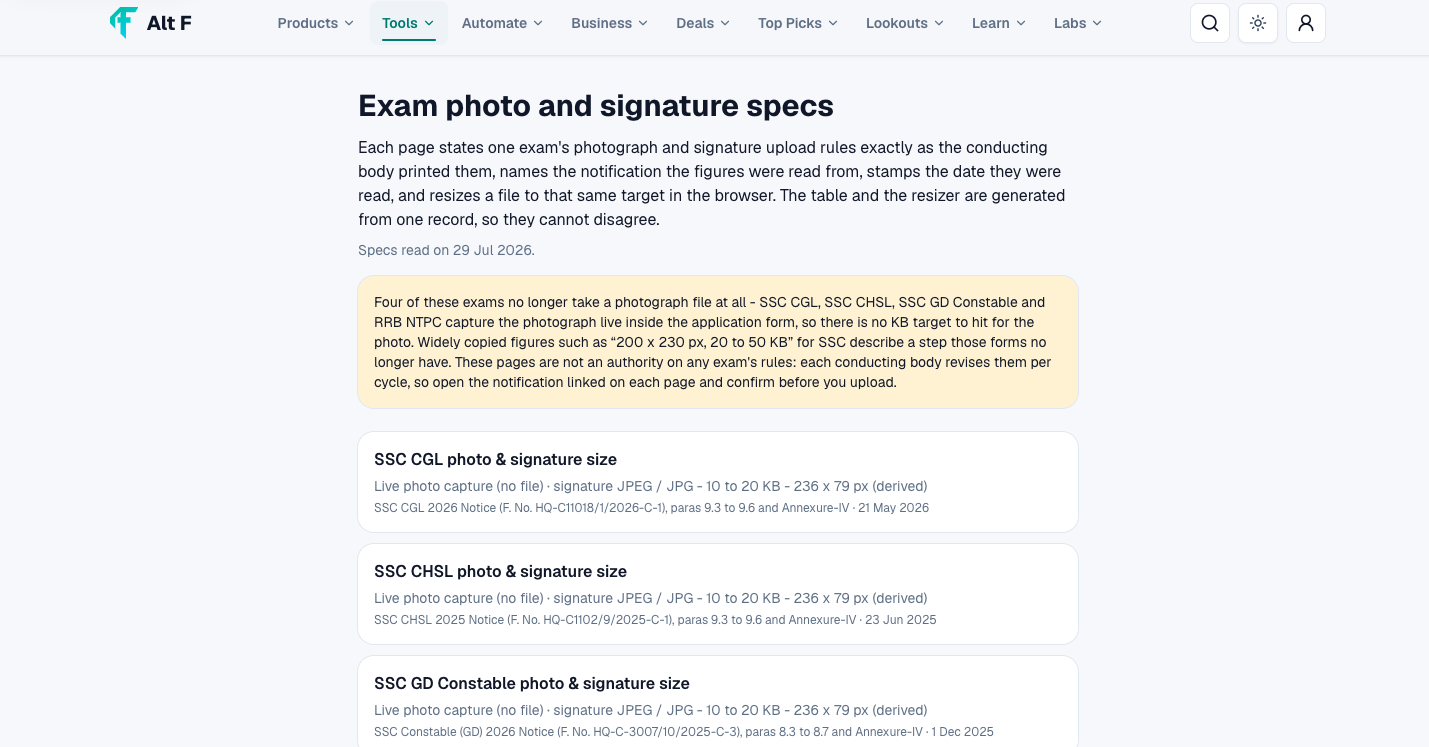
An Exam Photo Maker is an online photo utility designed to help users prepare photographs for exam and application forms.
The basic idea is simple: start with your existing photo and prepare it for the requirements of an online form.
Depending on the tool and the requirements of the application, you may need to adjust things such as:
Photo dimensions
Image size
Crop
Aspect ratio
File format
Overall framing
The goal is to create a clean, appropriately sized image that is easier to upload to an online application.
Why Do You Need an Exam Photo Maker?
Many online applications have specific photo requirements. A form may ask for a passport-style photograph with particular dimensions or a maximum file size.
For someone who does not regularly edit images, meeting these requirements manually can be confusing.
An exam photo maker can simplify the process by putting the important photo-preparation tasks in one place.
Common Problem | How a Photo Maker Helps |
|---|---|
Photo is too large | Resize the image |
Wrong proportions | Crop or adjust framing |
Incorrect dimensions | Prepare the required size |
Unwanted parts in the frame | Crop the image |
Difficult editing software | Use a simpler online workflow |
Application photo requirements | Prepare the image before uploading |
The biggest advantage is convenience. You do not necessarily need professional photo-editing knowledge just to prepare a basic application photo.
How to Create a Passport-Size Exam Photo Online
Creating an exam-ready photo should be straightforward. While the exact steps can vary depending on the tool, the general process is simple.
Step 1: Choose a Suitable Photo
Start with a clear photograph where your face is easily visible.
Avoid using an image that is heavily blurred, extremely dark, or cropped in a way that makes your face difficult to recognize.
A recent photograph is generally preferable when the application specifically asks for one.
Step 2: Upload the Image
Select the photo you want to prepare and upload it to the photo tool.
Before uploading, check the application's requirements so you know what type of image you need.
Step 3: Adjust the Crop
Cropping helps remove unnecessary background or empty space.
The important thing is to keep the face properly positioned rather than cropping too tightly.
Step 4: Resize the Photo
If the application specifies particular dimensions, resize the image accordingly.
Do not guess the required dimensions when the exam authority has provided exact instructions. Always check the official application guidelines first.
Step 5: Check the File Requirements
Some applications specify acceptable file formats and maximum file sizes.
Before downloading or uploading your final image, check these details carefully.
Step 6: Save the Final Photo
Once the photo meets the required specifications, save the prepared image and use it in the relevant application form.
It is a good idea to keep the final image in an easily accessible folder so you can find it quickly when completing the application
|
What Makes a Good Exam Photo?
Preparing the correct dimensions is important, but the actual photograph also matters.
A good application photo should generally be:
Clear and properly focused
Recent when required
Properly framed
Easy to recognize
Free from unnecessary filters
Suitable for the application's stated requirements
Saved in the requested file format
Avoid turning a formal application photo into a heavily edited social-media picture. The purpose is identification and form submission, not creative photography.
Important Exam Photo Requirements to Check
Different exams and organizations can have different requirements. Never assume that one size works for every application.
Before preparing your photo, look for the following information:
Requirement | What to Check |
Dimensions | Required height and width |
File Size | Minimum or maximum KB/MB |
File Format | JPG, JPEG, PNG, or specified format |
Background | Required background color or style |
Photo Type | Recent/passport-style photo requirements |
Framing | Face positioning and visible area |
Upload Rules | Any special instructions from the application portal |
Important: The exam or application authority's official instructions should always be treated as the final source for photo specifications.
Common Mistakes When Uploading Exam Photos
A photo can look perfectly fine on your phone and still fail an online upload requirement.
Here are some common mistakes worth avoiding.
Using the Wrong Dimensions
One of the most common problems is uploading a photo with dimensions that do not match the application's instructions.
Always check the required dimensions before preparing the image.
Uploading an Oversized File
A high-resolution photograph can sometimes be much larger than an application portal allows.
If the website specifies a maximum file size, make sure your final image stays within that limit.
Choosing the Wrong Format
Some portals accept only particular image formats.
For example, if the application specifically asks for JPG or JPEG, do not assume that another format will automatically work.
Poor Lighting
A dark or unclear photograph may make your face difficult to recognize.
Choose a well-lit image with a clear view of your face.
Excessive Editing
Filters, beauty effects, heavy retouching, and dramatic editing may make a photograph unsuitable for a formal application.
Keep the image natural and follow the application's instructions.
Cropping Too Closely
A common mistake is cutting off part of the head or placing the face too close to the edges.
Leave appropriate space around the subject while following the required framing instructions.
Exam Photo Maker vs Manual Photo Editing
You can technically prepare an exam photo using general photo-editing software, but that may involve several steps.
An online exam photo maker can be more convenient when you simply need to prepare an application-ready image.
Feature | Exam Photo Maker | General Photo Editor |
Designed for simple photo preparation | Yes | Not necessarily |
Easy resizing | Usually | Yes |
Basic cropping | Yes | Yes |
Beginner-friendly workflow | Often | Depends on software |
Advanced editing | Limited | Usually extensive |
Best for | Application photos | Broader creative editing |
If you are editing professional photographs, a full photo editor may offer more flexibility. But if you simply need to prepare an image for an exam form, a dedicated tool can save time.
Tips for Taking a Better Exam Photo
The editing process cannot completely fix a poor-quality original photograph. Starting with a good photo makes everything easier.
Use Good Lighting
Take the photograph in a well-lit environment. Avoid extremely strong shadows across your face.
Keep the Background Simple
A clean background generally makes the subject easier to see. If the application has specific background requirements, follow those instructions.
Look Directly at the Camera
For formal application photographs, a straightforward pose is usually more appropriate than a creative angle.
Keep Your Face Clearly Visible
Avoid accessories or hair positioning that unnecessarily covers important facial features, unless they are required or permitted for your situation.
Avoid Heavy Filters
Do not use social-media-style filters that significantly change your appearance.
Check the Photo Before Uploading
Zoom in and inspect the final image. Make sure it is clear, properly cropped, and saved in the required format.
Why Online Photo Tools Are Useful for Students
Students often need photographs for more than one purpose. Apart from competitive and entrance examinations, they may need photos for admissions, registrations, scholarships, identity cards, applications, and other educational processes.
Having an easy photo-preparation tool can be useful when a form suddenly asks for a particular image size.
Instead of searching for complicated editing software, students can use a simple online workflow to prepare the image and continue with their application.
Keep Your Original Photo Safe
One useful habit is to keep the original photograph separately from the edited version.
For example, you might keep:
Original Photo → Edited Exam Photo → Final Upload Version
This gives you flexibility if another application requires different dimensions or a different file size.
You do not have to repeatedly edit the same already-compressed image.
How to Prepare Before Starting an Application
A little preparation can make the entire form-filling process smoother.
Before opening the application form, keep these items ready:
Recent photograph
Required photo dimensions
Maximum file size
Accepted image format
Signature image, if required
Identity documents
Educational documents
Other application-specific files
This prevents unnecessary interruptions while filling out the form.
Quick Exam Photo Preparation Checklist
Use this checklist before uploading your photograph:
Check | Done? |
Photo is recent if required | ✓ |
Face is clearly visible | ✓ |
Image is properly cropped | ✓ |
Required dimensions are followed | ✓ |
File size is within the limit | ✓ |
Correct file format is used | ✓ |
Background follows the instructions | ✓ |
No unnecessary filters are applied | ✓ |
Final image has been checked | ✓ |
Taking a few seconds to check these details can prevent avoidable upload problems.
Who Can Use an Exam Photo Maker?
An online exam photo maker can be useful for many types of users, including:
Students applying for entrance exams
Candidates filling out competitive exam forms
College and university applicants
Scholarship applicants
Job applicants
People completing registration forms
Parents helping students with online applications
Anyone who needs a properly prepared passport-size photograph
You do not need to be a professional photographer or graphic designer to prepare a basic application photo.
How AltFTool Can Make the Process Easier
AltFTool brings useful online tools into one place, making everyday digital tasks easier to handle.
For an exam or application photo, the idea is simple: start with your photograph, prepare it according to the required specifications, and keep the final image ready for upload.
The tool can be particularly useful when you want to avoid complicated editing software for a straightforward photo-preparation task.
However, remember that the application authority determines the final requirements. Always compare your prepared image with the official instructions before submitting the form.
Quick checklist
Confirm the main goal for exam photo maker: create passport size photos online 2026.
Compare the available options before choosing one workflow.
Use the related AltFTool utilities to finish the task faster.
An Exam Photo Maker is an online tool that helps users prepare photographs for exam forms, applications, admissions, and similar online submissions.
Yes. Online photo tools can help you crop and resize an existing photograph for passport-size or application-related requirements.
The required format depends on the exam or application portal. Always check the official instructions before uploading the image.
There is no universal size for every exam. Dimensions and file-size limits can vary, so follow the specific application's requirements.
Stop searching and start using smarter online tools. Explore productivity tools, PDF utilities, converters, calculators, AI tools, and more with AltFTool. Explore AltFTool
Explore AltFToolWho should use Tools
Exam Photo Maker: Create Passport Size Photos Online 2026 is built for readers who want a faster way to finish everyday web tasks. The main goal is shorter workflows, clearer outputs, and reusable tool habits, so the guide focuses on practical choices instead of broad theory.
Use it when you need one of these outcomes:
- testing a task before choosing a heavier app
- saving time on a repeated browser workflow
- combining a guide with a related AltFTool utility
How to get a better result
- Read the core use case and decide what output you need.
- Open the related AltFTool utility and test it with a small sample.
- Review the result, adjust settings, and repeat only if needed.
- Continue with related tools or guides for the next step in the workflow.
Start small, check the first output, and only then repeat the workflow with the full file, text, media, or game session. That gives you a quick quality check before you spend more time.
Quality checks before you trust the output
- the input is clean before running the tool
- the output matches the format you need
- private details are removed before sharing or downloading
Do not overcomplicate a simple task. Start with the smallest sample that proves the workflow, then scale up once the output looks right.
Continue your workflow
If you want to try the workflow now, open the related AltFTool tool area. For more reading, continue through the Tools archive or the AltFTool tools directory.
This creates a cleaner path from explanation to action: read the guide, test the tool, compare the output, and move into the next related AltFTool resource only when it helps the task.
Sources and review notes
References used to check facts, freshness, and reader-safe recommendations in this guide.
Information is based on the features and functionality available on the AltFTool Exam Photo Maker page.
- 1AltFTool
altftool.com
Discussion
0 comments
No comments yet
Discussion will appear here once it loads.