A friend of mine runs a small home bakery, and for almost a year she made every Instagram post on Canva's free plan. It worked fine, until the day she needed the same cake photo in a post, a story and a flyer. She spent nearly an hour resizing it by hand, then accidentally deleted a version she liked. That evening she asked me, "Should I just pay for Pro?"
It's a fair question, because Canva Free is already very good. So before you spend money, it helps to see what you actually get and who really benefits. Let's go through it without the sales talk.
What You Already Get for Free
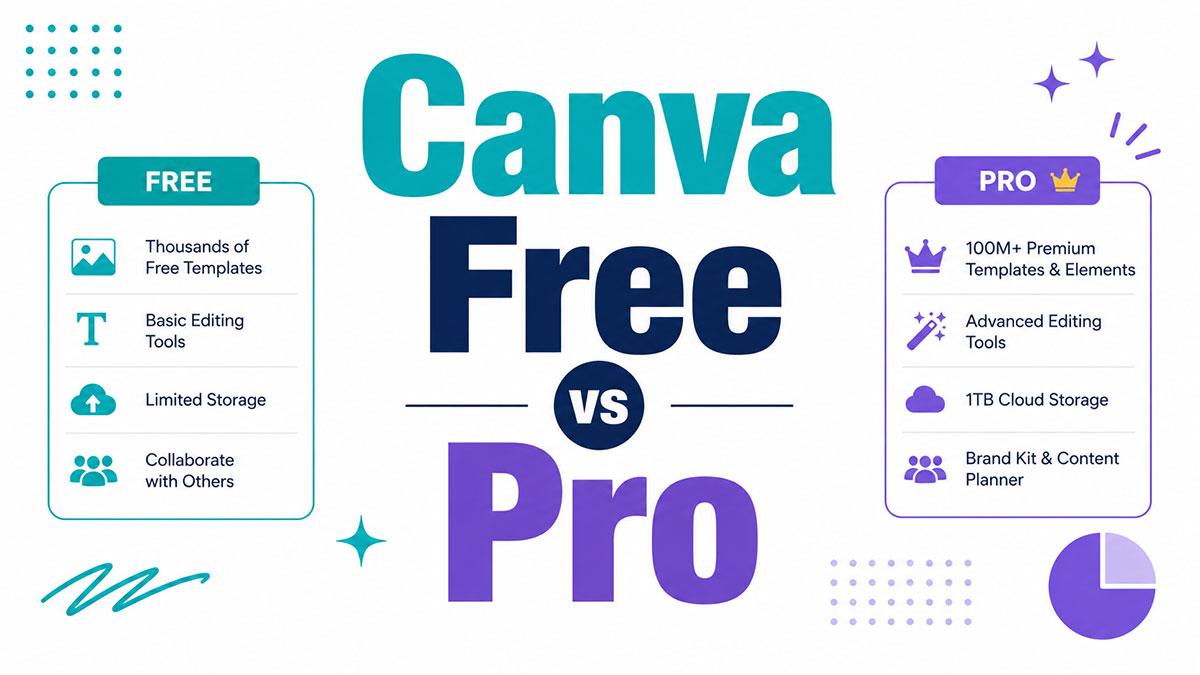
Canva Free is more generous than many people expect. You don't need a card, and you can design real, usable things from day one. For occasional users, this plan is often enough.
Over 1.6 million templates to start from
Around 4.7 million stock photos, graphics and other elements
One Brand Kit with up to three colours
5 GB of storage for your designs and uploads
A full drag-and-drop editor, the same one Pro users get
That last point matters most. The editor itself isn't stripped down on the free plan. What you lose are extras: premium content, a few time-saving tools and some AI features. So if you only make a poster now and then, you won't feel cramped.
What Canva Pro Adds

Canva Pro is built for people who design regularly, and it mainly adds more of everything, plus a few tools that save time. The jump in content is big: around 3.6 million templates and over 141 million stock assets, compared with the smaller free library.
More space and more brands
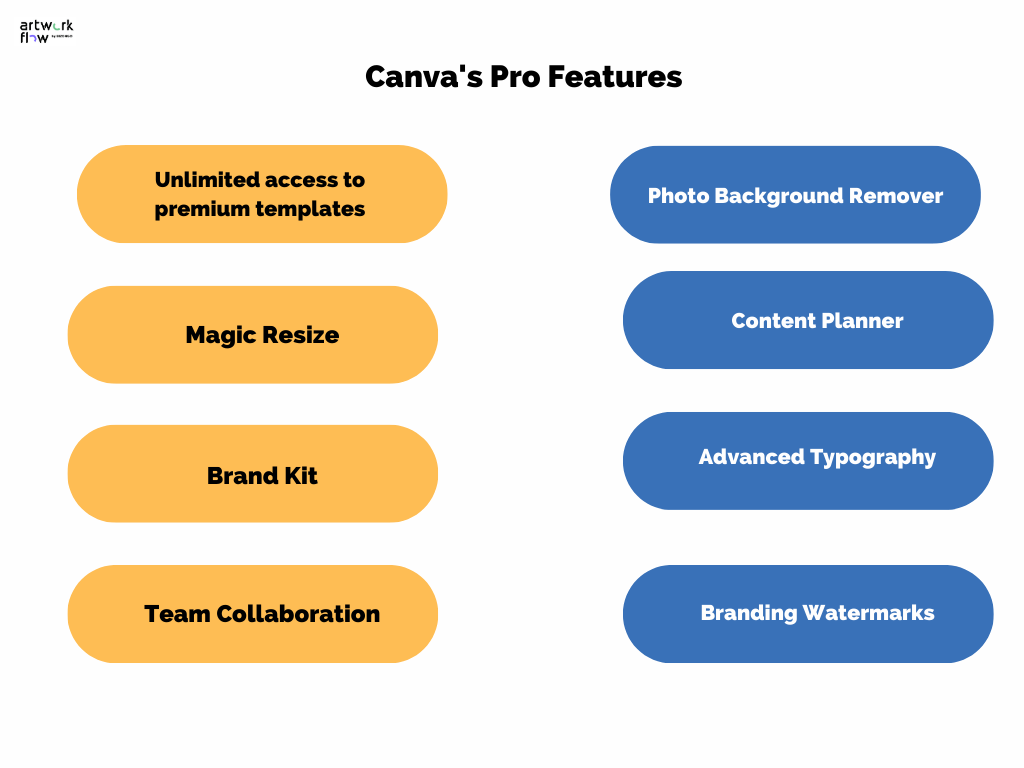
You get 100 GB of storage, which helps if you upload lots of photos or videos. You can also keep up to five Brand Kits, so your fonts, colours and logos stay saved. That's useful if you manage more than one business or client.
Time-saving tools
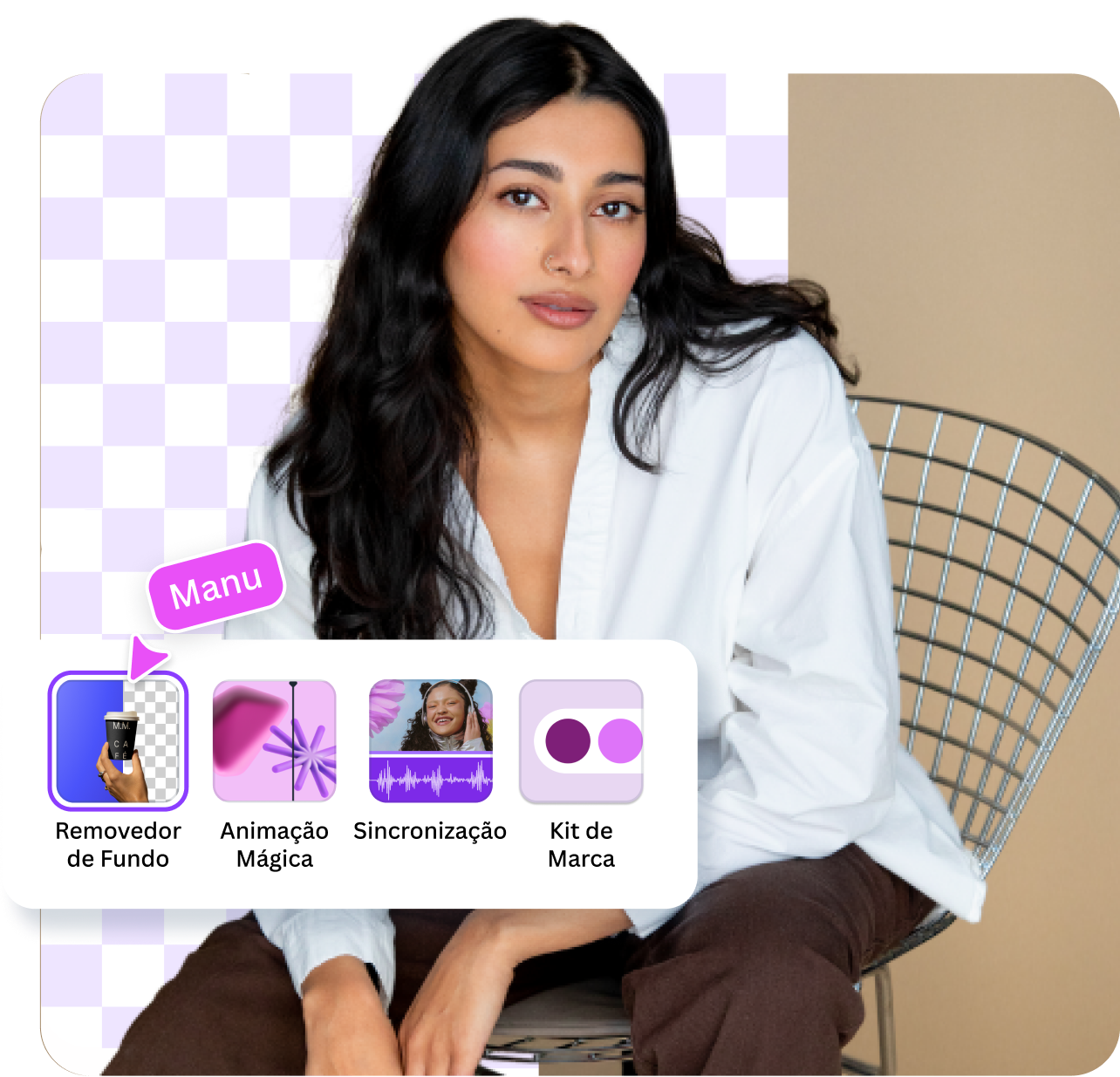
The tool most people mention first is Magic Resize, which converts one design into many sizes in a click. Background remover for photos and videos is another favourite, along with version history that lets you roll back to an older design. Pro also gives you far more AI usage than Free, which matters because Canva has put a lot of effort into AI this year.
Feature | Canva Free | Canva Pro |
|---|---|---|
Templates | 1.6 million+ | 3.6 million+ |
Stock photos, videos and elements | About 4.7 million | 141 million+ |
Storage | 5 GB | 100 GB |
Brand Kits | 1 (up to 3 colours) | Up to 5 |
AI usage | Limited | About 10x more |
Pricing in 2026
In the US, Canva Pro costs around 18 dollars a month, or 144 dollars a year if you pay annually, which works out to about 12 dollars a month. Paying yearly saves a noticeable amount, so if you're sure you'll use it, annual is the cheaper route. Prices vary by region and can change, so check the current number in your own country before deciding.
Quick card: Try before you pay
Canva usually offers a 30-day free trial of Pro. Use the whole month on real work, and then decide. If you didn't miss the premium tools at the end, stay on Free.
Some regions also run special offers. For example, in India, certain Jio customers have been able to claim a Canva Pro or Pro Lite offer through the MyJio app, free for a limited period. If you're eligible for something like that, it's worth checking before paying anything.
The New AI Side of Canva
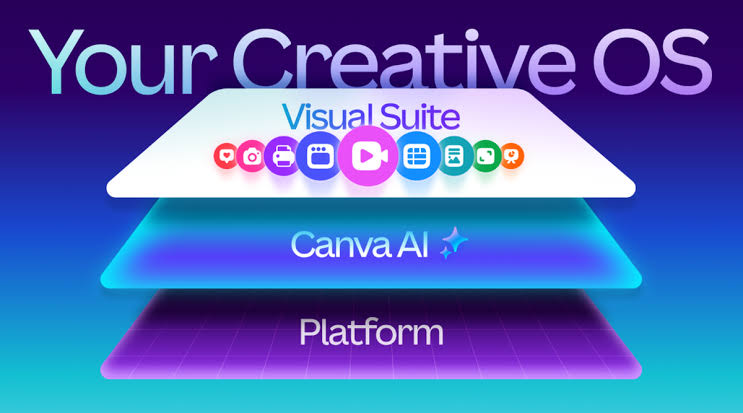
Canva has leaned heavily into AI this year. It launched Canva AI 2.0 in April, which lets you describe a design in text or voice and then builds editable elements for you. That's different from tools that only give you a flat picture, because you can still change every part afterwards.
Most of the stronger AI features sit behind the Pro plan, or have far higher limits on it. If you use AI to write captions, generate images or build quick layouts every day, Pro starts to make sense. If you rarely touch AI tools, you can safely ignore this part.
Canva also made its Affinity design software free in 2026, though the AI tools inside it need a Pro plan. That's an extra reason for people who like to edit photos or vectors in more depth.
Who Should Stay on Free
🎨 1. Casual Designers
Free Canva is enough for simple design needs.
✨ Tap to Reveal Tips
- Create simple posters.
- Design birthday invitations.
- Make personal greeting cards.
- Use free templates.
- Edit basic photos.
- Avoid paying for unused features.
📱 2. Social Media Beginners
Start creating content without extra costs.
✨ Tap to Reveal Tips
- Create basic social posts.
- Design simple story graphics.
- Use free fonts and elements.
- Make profile banners.
- Try free content templates.
- Upgrade only when necessary.
🎓 3. Students & Learners
Free tools can handle many study projects.
✨ Tap to Reveal Tips
- Create school presentations.
- Design project covers.
- Make study notes.
- Prepare simple charts.
- Use free educational templates.
- Save money while learning.
💰 4. Budget-Conscious Users
Choose Free if premium tools aren't essential.
✨ Tap to Reveal Tips
- Set a small design budget.
- Use free stock elements.
- Explore available templates.
- Check free editing options.
- Avoid unnecessary subscriptions.
- Upgrade when work demands it.
You don't need to upgrade just because everyone online says you should. Free is a very good choice in several situations.
You design only a few times a month
You mostly use templates and don't need premium photos
You're happy resizing designs manually
You're a student or beginner learning the tool
You rarely work with large video files or big uploads
Also, remember that some groups get premium features at no cost. Many schools and non-profits can claim most premium tools for free, so check whether you qualify before paying.
Who Should Upgrade
Pro starts paying for itself when design is part of your regular work. The more you create, the faster the time savings add up.
Content creators and social media managers
If you post often and need the same content in many sizes, Magic Resize alone can save hours every week. Having a proper Brand Kit also keeps your posts looking consistent, which helps your page look professional.
Small business owners and freelancers
A bakery, a salon or an online shop can look far more polished with premium templates and stock images. Freelancers who manage several clients benefit from multiple Brand Kits and more storage, and the background remover is a big help for product photos.
Your Situation | Better Choice | Main Reason |
|---|---|---|
Occasional posters and school projects | Free | The free library is already generous |
Daily social media posting | Pro | Magic Resize and Brand Kits save time |
Product photos for an online shop | Pro | Background remover is a big help |
Managing several clients | Pro | Multiple Brand Kits and 100 GB storage |
Learning Canva as a beginner | Free | You can upgrade later if you need more |
A Simple Way to Decide
If you're still unsure, ask yourself three plain questions. Do I open Canva at least a few times a week? Do I lose time resizing, searching for assets or removing backgrounds? Would the money I save in time be worth the monthly cost?
If you answer yes to most of them, Pro is probably worth it. If you answer no, keep using Free and revisit the question in a few months. Nothing is lost by waiting, and you can switch whenever your needs change.
Mistakes to Avoid
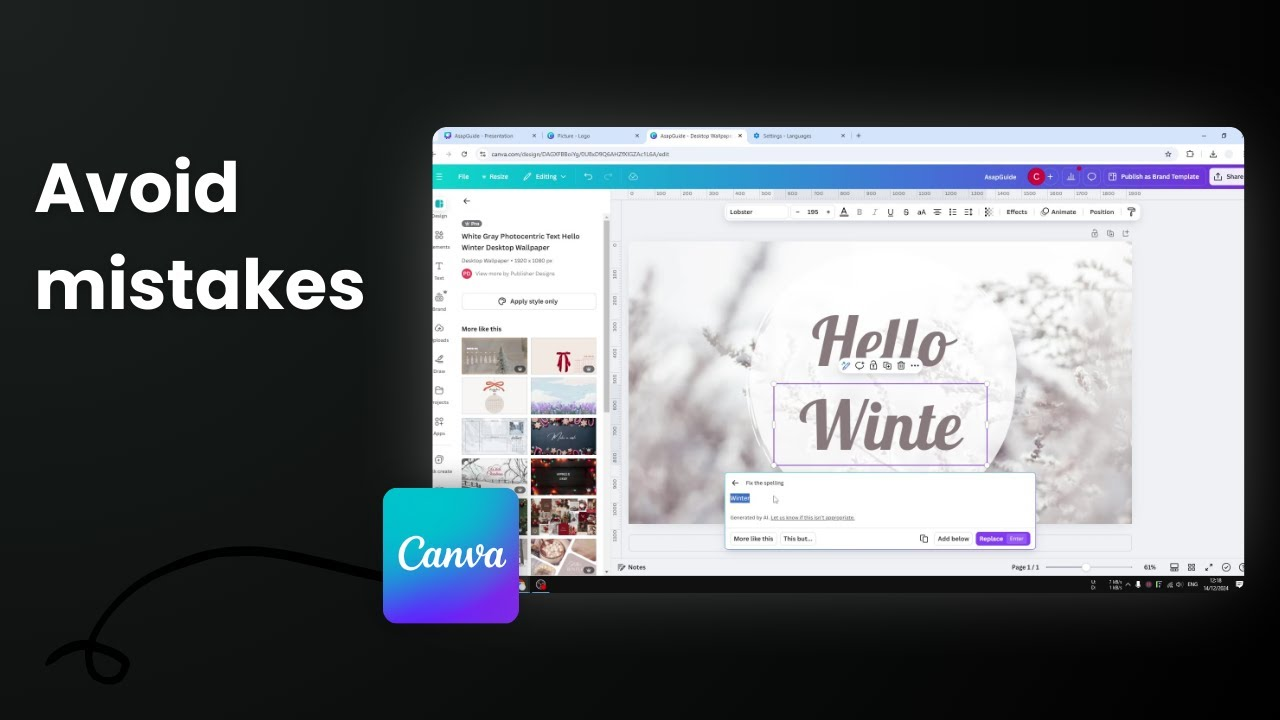
A few common errors make people either overspend or underuse the plan.
Paying for Pro and then never using the premium tools
Forgetting to cancel after a free trial you didn't need
Using monthly billing when you know you'll stay all year
Ignoring free offers from schools, telecom providers or non-profit programmes
Thinking Pro automatically makes designs look better, when good design still depends on you
Final Thoughts
Canva Free is a strong tool, and for many people it's enough. Canva Pro is worth it when design is a regular part of your work, and when features like Magic Resize, the background remover, bigger storage and extra AI save you real time. The best approach is simple: start free, try the 30-day trial when you feel stuck, and keep whichever plan fits the way you actually work.
My friend with the bakery did try Pro for a month. She kept it, mostly because of the resize tool, and she says the hour she used to waste every week now goes into baking instead. That's really the test: if an upgrade gives you time back, it's worth it, and if it doesn't, you can happily skip it.
FAq's
Canva Pro offers premium templates, design elements, AI tools and additional features.
Yes, Canva Pro includes a background remover for supported images.
Yes, Magic Resize helps adapt designs to different formats.
Yes, it provides AI-powered tools for creating and editing designs.
It can be worth it for frequent designers, content creators and businesses that need premium features.
Sources and notes
Links the author listed for this post.
Canva Official Pricing Page, Canva Help Centre and official Canva feature documentation. Canva+1


Discussion
0 comments