
Microsoft Office has long been a popular choice for creating documents, spreadsheets, and presentations. However, its premium subscription may not be necessary for everyone. Students preparing assignments, professionals writing reports, and small businesses managing everyday tasks can often complete their work using free office software.
Fortunately, several free alternatives offer powerful features without requiring a Microsoft 365 subscription. Some work directly in your browser, while others can be installed on your computer for offline use.
The best option depends on your needs. If you want simple document editing, a lightweight desktop suite may be enough. If you regularly work with classmates or colleagues, a cloud-based platform with real-time collaboration could be more useful.
Best Free Microsoft Office Alternatives in 2026
Here are some of the most useful free office suites to consider this year.
Software | Best For | Main Advantage |
|---|---|---|
LibreOffice | Offline work | Complete desktop office suite |
Google Docs, Sheets & Slides | Collaboration | Real-time editing and sharing |
ONLYOFFICE | Office file compatibility | Familiar document formats |
WPS Office | Everyday productivity | All-in-one interface |
FreeOffice | Beginners | Simple and familiar design |
Zoho Writer, Sheet & Show | Online productivity | Browser-based office tools |
Apple iWork | Apple users | Smooth integration with Apple devices |
These tools offer different experiences, so choosing the right one can make your daily work easier and more productive.
LibreOffice – Best Free Desktop Office Suite
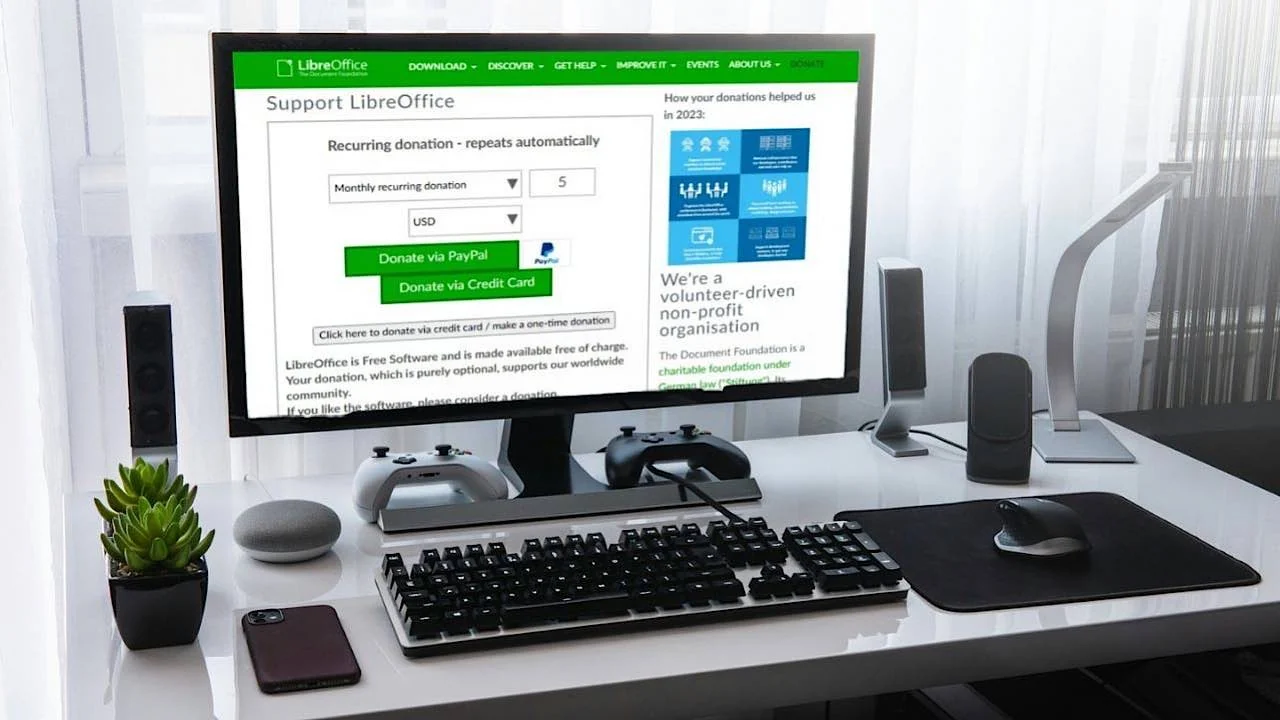
LibreOffice is one of the strongest free alternatives to Microsoft Office. It is an open-source productivity suite that includes Writer, Calc, Impress, Draw, Base, and Math.
Writer is useful for creating reports and essays, Calc handles spreadsheets, and Impress helps you build presentations.
Key features:
Free and open-source software
Works on Windows, macOS, and Linux
Supports common Microsoft Office file formats
Offers offline editing
Includes document, spreadsheet, and presentation tools
Allows PDF export
LibreOffice is especially useful for students and professionals who prefer working without an internet connection.
Its interface may feel different from Microsoft Office, and complex documents can sometimes require formatting adjustments. Still, it is an excellent choice for everyday productivity.
Google Docs, Sheets & Slides – Best for Online Collaboration
Google's office tools are ideal for people who prefer working online. Google Docs, Sheets, and Slides allow users to create documents, spreadsheets, and presentations directly in a browser.
One of their biggest advantages is collaboration. Multiple people can work on the same file, leave comments, and track changes without repeatedly sending documents through email.
Why choose Google Workspace's free tools?
Easy sharing with classmates and colleagues
Real-time collaboration
Automatic saving to Google Drive
Accessible through a web browser
Useful templates for everyday tasks
Available on computers and mobile devices
Google's tools are particularly helpful for group assignments, remote teams, and shared office projects.
The main limitation is that they are cloud-focused. Offline access is possible with setup, but it is not as straightforward as using a traditional desktop application.
ONLYOFFICE – Best for Microsoft File Compatibility
ONLYOFFICE is a practical choice for users who frequently exchange Word, Excel, and PowerPoint files.
Its desktop editors support common Microsoft Office formats and provide a familiar editing environment for documents, spreadsheets, and presentations.
Important features:
Free desktop editors
Supports DOCX, XLSX, and PPTX files
Offline editing capabilities
Available for Windows, macOS, and Linux
Mobile applications for document work
Open-source options
ONLYOFFICE can be particularly useful in workplaces where colleagues continue to use Microsoft Office.
Although it offers strong compatibility, always review complex files before sharing them. Advanced formatting, macros, and specialized features may not behave identically across different office suites.
WPS Office – Best All-in-One Productivity Tool
WPS Office is a popular alternative for users who want a familiar interface and several productivity features in one application.
It includes Writer, Spreadsheet, Presentation, and PDF-related tools. Its layout is designed to feel comfortable for people who have previously used Microsoft Office.
Main benefits:
Familiar ribbon-style interface
Document, spreadsheet, and presentation editing
PDF tools and conversion features
Available across desktop and mobile platforms
Free basic version with optional premium features
WPS Office is suitable for students, freelancers, and professionals who need an easy-to-use productivity application.
However, some advanced features require a paid upgrade. Review the free plan carefully before relying on a specific premium function.
FreeOffice – Best for Simple Everyday Work
FreeOffice is a lightweight office suite developed by SoftMaker. It provides three main applications: TextMaker, PlanMaker, and Presentations.
These applications cover most common office tasks, including writing documents, creating spreadsheets, and preparing slides.
What makes FreeOffice useful?
Free for personal and business use
Familiar menus and toolbars
Supports Microsoft Office formats
Available for Windows, macOS, and Linux
Offers a straightforward desktop experience
FreeOffice is a good option for users who do not need complicated collaboration features or a large collection of additional applications.
It is especially suitable for basic office work, school assignments, and personal documents.
Zoho Office Tools – Best Browser-Based Alternative
Zoho offers online productivity applications such as Zoho Writer, Zoho Sheet, and Zoho Show.
These tools help users create and manage documents without installing a traditional office suite.
Useful features include:
Online document editing
Spreadsheet and presentation tools
Sharing and collaboration options
Browser-based access
Integration with other Zoho services
Zoho is worth considering if you want an online workspace outside the Google ecosystem.
Its free personal offerings have different limits from business subscriptions, so check the available features before choosing it for a team.
Apple iWork – Best for Apple Users
Apple iWork includes Pages, Numbers, and Keynote. These applications are designed for Apple's ecosystem and offer a clean, user-friendly experience.
Pages is used for documents, Numbers for spreadsheets, and Keynote for presentations.
Why Apple users may prefer iWork:
Works smoothly across Apple devices
Attractive document and presentation templates
Easy file sharing through iCloud
Supports importing and exporting common Office formats
Offers web access through iCloud
iWork is a strong choice for Mac, iPhone, and iPad users who want a polished productivity experience.
However, some formatting differences may appear when exchanging files with Microsoft Office users.
How to Choose the Right Free Office Suite
Before downloading an alternative, consider what you actually need.
Your Requirement | Recommended Tool |
|---|---|
Offline document editing | LibreOffice |
Group assignments | Google Docs |
Microsoft file compatibility | ONLYOFFICE |
Simple all-in-one editing | WPS Office |
Lightweight desktop software | FreeOffice |
Online office workspace | Zoho |
Apple ecosystem | iWork |
Important pointers before switching:
Check whether your required features are available for free.
Test important DOCX, XLSX, and PPTX files.
Choose offline software if internet access is unreliable.
Consider collaboration features for team projects.
Download software only from official websites.
Keep backup copies of important documents.
Choosing the right tool can help you save money while maintaining an efficient workflow.
Discover More Free Productivity Tools
Office software is only one part of an efficient digital workflow. You may also need PDF converters, image editors, writing utilities, file compressors, or other online resources.
You can explore free online tools on AltFTool to discover useful utilities for everyday digital tasks, creative projects, and productivity.
These tools can complement your preferred office suite and help you complete common tasks more conveniently.
FQAs
LibreOffice is a strong overall choice because it offers a complete desktop office suite with offline functionality.
Yes. Google Docs, Sheets, and Slides are available with a free Google account.
LibreOffice, ONLYOFFICE Desktop Editors, and FreeOffice support offline desktop editing.
It supports common formats such as DOCX, XLSX, and PPTX, although complex files should always be checked.
Generally, official versions from trusted project websites are safe. Avoid unofficial installers and modified software packages.
Sources and notes
Links the author listed for this post.
This article is based on publicly available product information and 2026 office-software comparisons. Free-plan features, supported platforms, and compatibility may change. Check each provider's official website for current details.


Discussion
0 comments