In today’s digital environment, staying focused while working or studying can be difficult. Social media, entertainment websites, and other online distractions often interrupt productivity and reduce concentration.
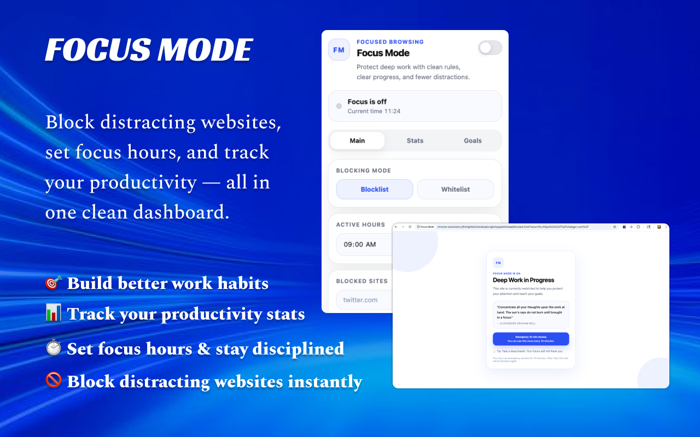
Focus Mode is a Chrome extension designed to help users stay focused by blocking distracting websites during specific working hours. When a user tries to access a blocked site during active focus time, the extension redirects them to a motivational Deep Work page, encouraging them to return to their task.
By limiting distractions and promoting disciplined browsing habits, Focus Mode helps users improve productivity and maintain better concentration.
What is Focus Mode?
Focus Mode is a productivity-focused Chrome extension that blocks selected websites during a defined time range. Users can set their working hours and create a list of websites they want to block during that period.
When a blocked website is opened during focus hours, the extension automatically redirects the user to a motivational blocked page instead of the original website. This reminder helps users stay committed to their work or study sessions.
Key Features
1.Focus Mode includes several features designed to improve productivity and minimize distractions.
2.Toggle-based Focus Mode that can be easily turned on or off
3.Custom focus hours where users can define start and end times
4.Manual website blocklist to add or remove distracting sites
5.Automatic tab monitoring through a background service worker
6.Blocked page redirection with a motivational message
7.3-second delay before unlock button activates to prevent impulsive access
How It Works
Using Focus Mode is simple and only requires a few steps.
- 1. First, install the extension and open the popup from the browser toolbar. Turn on Focus Mode and set your working hours, such as 9:00 AM to 5:00 PM. Next, add the websites you want to block, such as social media or entertainment platforms.
- 2. Once Focus Mode is active, the extension monitors browser tabs automatically. If you try to open a blocked website during focus hours, you will be redirected to a Focus Mode blocked screen with a motivational message.
3. On this screen, you must wait 3 seconds before the unlock button becomes available. If necessary, you can also activate Emergency Access, which allows temporary access to the website for 10 minutes. After that period ends, the website becomes blocked again automatically.
Technical Specifications
| Feature | Details |
| Extension Name | Focus Mode |
| Platform | Google Chrome |
| Category | Productivity Extension |
| Version | v1.0.0 |
| Blocking Method | Website Redirect System |
| Data Storage | chrome.storage.sync |
| Background Process | Service Worker |
| Internet Required | Yes |
| Developer Platform | AltFTool |
Real Use Cases
Focus Mode is helpful in many productivity-focused situations. Students can block social media websites while studying, allowing them to maintain better concentration. Professionals working from home can reduce online distractions during office hours. Freelancers and remote workers can use the extension to create a disciplined work environment. Even everyday users can benefit by limiting access to time-consuming websites and staying focused on important tasks.
Benefits
1. Using Focus Mode provides several advantages for users who want to stay productive online.
2. Reduces digital distractions
3. Improves focus during work or study sessions
4. Encourages disciplined browsing habits
5. Helps maintain deep work sessions
6. Tracks blocked website attempts for productivity awareness
Privacy & Security
Focus Mode is designed with a privacy-first approach. All user settings and blocked website data are stored securely using chrome.storage.sync, ensuring that personal data is not shared with external servers. The extension does not track browsing activity or collect personal information, and its clean interface ensures a safe and distraction-free browsing experience.
FAQs
Who should use Extensions
Best Focus Mode – Block Distracting Websites and Stay Productive is built for browser users who want helpful add-ons without slowing down their setup. The main goal is a cleaner browser workflow with fewer risky or unnecessary extensions, so the guide focuses on practical choices instead of broad theory.
Use it when you need one of these outcomes:
- adding one-click help to everyday browser tasks
- reducing repetitive copy, download, or writing work
- testing a workflow before adding more extensions
How to get a better result
- Install only the extension that solves your current task.
- Review permissions before enabling it on important sites.
- Test it on a low-risk page before using it in daily work.
- Remove duplicate extensions so the browser stays fast and predictable.
Start small, check the first output, and only then repeat the workflow with the full file, text, media, or game session. That gives you a quick quality check before you spend more time.
Quality checks before you trust the output
- the extension permissions match the job it claims to do
- reviews and update history look trustworthy
- you can disable or remove it easily if it is not useful
Avoid stacking multiple extensions that do the same job. Too many add-ons can slow browsing, add confusing buttons, and increase permission risk.
Continue your workflow
If you want to try the workflow now, open the related AltFTool tool area. For more reading, continue through the Extensions archive or the AltFTool extension guides.
This creates a cleaner path from explanation to action: read the guide, test the tool, compare the output, and move into the next related AltFTool resource only when it helps the task.
Reader questions
Quick answers
What does "Best Focus Mode – Block Distracting Websites and Stay Productive" cover?
Best Focus Mode – Block Distracting Websites and Stay Productive In today’s digital environment, staying focused while working or studying can be difficult
When should I use Extensions?
Use Extensions when you need adding one-click help to everyday browser tasks or reducing repetitive copy, download, or writing work. It is best for a cleaner browser workflow with fewer risky or unnecessary extensions.
How do I get better results from Extensions?
Start with a small sample, then check that the extension permissions match the job it claims to do and reviews and update history look trustworthy. Review the output before using it in a final workflow.
Where can I find more Extensions guides?
Use the AltFTool blog archive, AltFTool extension guides, and related links on this page to explore more Extensions tutorials, tool workflows, and practical recommendations.
Sources and review notes
References used to check facts, freshness, and reader-safe recommendations in this guide.
Reviewed against AltFTool editorial guidance, related site archives, and linked tool pages for freshness and reader usefulness.
- 1AltFTool Extensions archive
AltFTool
- 2AltFTool extension guides
AltFTool
- 3AltFTool related tools area
AltFTool
Discussion
0 comments
No comments yet
Discussion will appear here once it loads.