PDF files are widely used for sharing documents because they preserve the original layout, fonts, images, tables, and overall appearance across different devices. However, editing a PDF can sometimes be difficult, especially when you need to update information, correct mistakes, add new content, or reuse text in another document. This is where converting a PDF into a Word document becomes useful.
Microsoft Word allows users to edit text, adjust formatting, insert tables, and make other changes easily. By converting a PDF into an editable Word file, you can work with the document without recreating everything from the beginning.
The challenge is that PDF-to-Word conversion does not always preserve the original formatting perfectly. Fonts may change, tables can move, images may shift, and page layouts can become different. Fortunately, there are several free methods that can help you convert PDF files into Word documents while maintaining as much of the original formatting as possible.
Explore AltFTool for free PDF conversion tools and digital utilities that help you manage documents, simplify editing, and complete everyday file tasks easily.
This guide explains how to convert PDF to Word for free, which methods you can use, how to avoid common formatting problems, and what to check after conversion.
Why Convert a PDF into a Word Document?
PDF documents are designed primarily for viewing, sharing, and printing. They are useful when you want a document to look consistent on different devices. However, editing information directly inside a PDF may require specialised software.
A Word document offers more flexibility for editing and updating content. Converting a PDF into Word makes it easier to modify the document according to your requirements.
Some common reasons for converting PDF files include:
Editing existing content: Correct spelling mistakes, update information, or rewrite paragraphs without creating a new document.
Updating tables: Add new rows, remove unnecessary information, or modify existing table entries.
Reusing document content: Transfer text from an existing PDF into a new report, assignment, proposal, or presentation.
Changing document formatting: Adjust headings, fonts, spacing, margins, and paragraph alignment.
Adding new information: Insert additional sections, images, comments, or other details.
Improving collaboration: Share an editable Word document with colleagues who need to review or update its content.
Converting a PDF into Word is particularly helpful when you regularly work with reports, educational documents, business files, invoices, and other text-based materials.
How to Convert PDF to Word for Free Using Microsoft Word
Microsoft Word includes a built-in feature that can open and convert many PDF files into editable documents. This is one of the easiest methods because you may not need additional conversion software.
When you open a PDF in Word, the application attempts to recreate the document using editable text, paragraphs, tables, and other elements.
Follow these steps:
Open Microsoft Word
Start Microsoft Word on your computer. You can open an existing document or begin from the application's main screen.
Select the PDF File
Choose the Open option and browse your computer to find the PDF document you want to convert.
Allow Word to Convert the Document
When you select the PDF, Word may display a message explaining that it will convert the PDF into an editable Word document. The conversion process may take a few moments, depending on the document's size and complexity.
Review the Converted Content
After conversion, check the document carefully. Look at the headings, paragraphs, tables, images, page breaks, and spacing to identify any formatting changes.
Save the File as a Word Document
Choose Save As and select the Word Document format, usually DOCX. Give the file a suitable name and save it to your preferred location.
Once saved, you can edit the document like any other Word file.
This method works well for many standard PDFs, although complicated layouts may require additional adjustments.
How to Convert PDF to Word for Free Using Google Docs
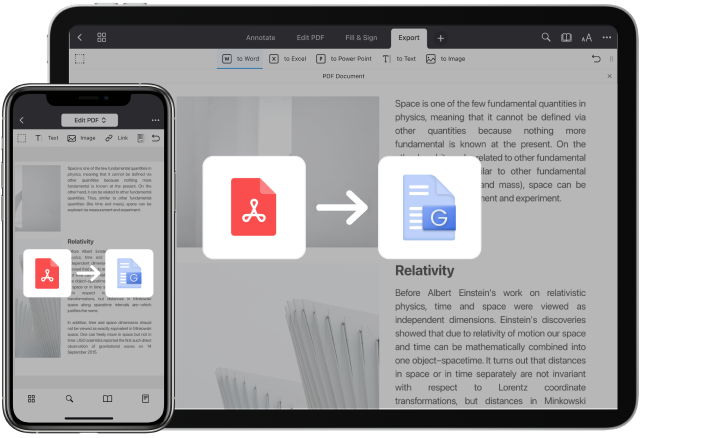
Google Docs is another convenient option for converting PDF files without installing additional desktop software. It can open certain PDF documents and extract their content into an editable document.
This method is especially useful for users who prefer working through a web browser.
Upload the PDF File
Open Google Drive and upload the PDF document from your computer.
Open the Uploaded Document
Locate the uploaded PDF and choose the option to open it with Google Docs, if available.
Check the Converted Content
Google Docs will attempt to extract the text and other supported elements. Depending on the PDF structure, the document may not look exactly like the original.
Make Necessary Changes
You can edit the text, correct mistakes, adjust headings, and modify paragraph spacing directly in Google Docs.
Download as a Word File
After reviewing the content, use the download option and select Microsoft Word format (.docx).
Your converted document will be saved to your computer.
Google Docs can be useful for text-based PDFs, but documents with complex columns, decorative layouts, or numerous images may require additional formatting work.
How to Convert PDF to Word Using Free Online Converters
Online PDF converters provide another way to convert documents without installing software. Many services offer free conversion options, although file-size limits, daily usage restrictions, or additional features may vary.
The general conversion process is similar across many online tools.
Choose a PDF Conversion Tool
Select a PDF-to-Word conversion service that offers a free option and has clear privacy and file-handling information.
Upload Your PDF
Choose the PDF file from your computer and upload it to the conversion service.
Select the Word Format
If the service offers multiple output formats, select DOCX or Word Document.
Start the Conversion
Begin the conversion process and wait while the service processes your file.
Download the Converted Document
When the conversion is complete, download the Word file and open it on your computer.
Check the Formatting
Review the converted document before using it. Pay special attention to tables, images, page layouts, fonts, and headings.
Online converters are convenient when you need to convert a document quickly. However, avoid uploading confidential business records, financial information, personal documents, or sensitive files to an online service unless you have reviewed its security and privacy practices.
How to Convert Scanned PDF Files into Editable Word Documents
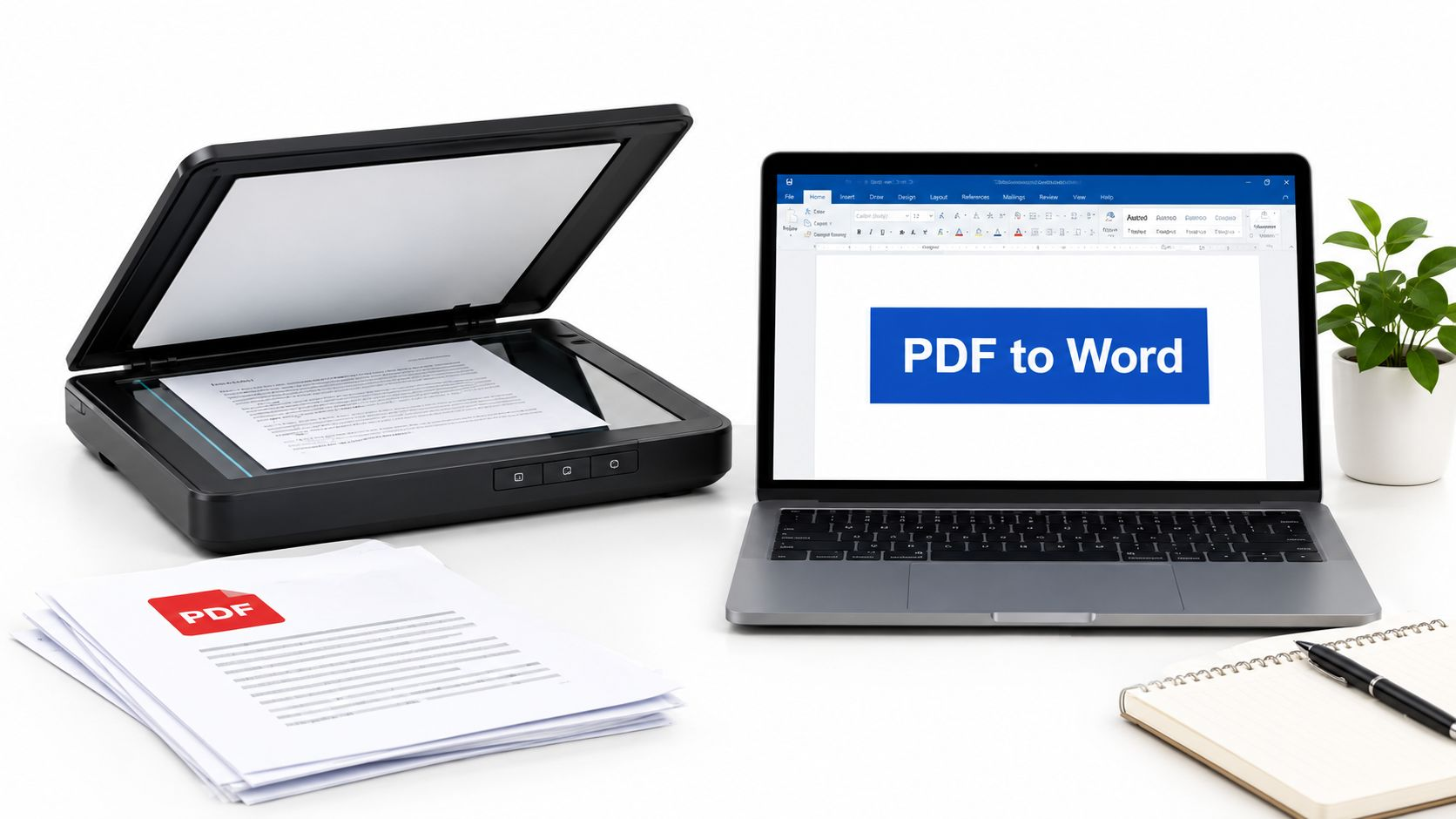
Not every PDF contains selectable text. Some PDFs are created by scanning printed pages, photographs, or paper documents. In these files, each page may behave like an image instead of a normal text document.
A regular PDF converter may not recognise the words inside these scanned pages.
To make scanned PDFs editable, you generally need Optical Character Recognition (OCR).
OCR technology identifies letters, numbers, and words within an image and converts them into machine-readable text.
Understand How OCR Works
OCR analyses the scanned page and attempts to recognise the characters appearing in the document. It then converts the recognised content into editable text.
Select a Tool with OCR Support
Choose a PDF conversion application or service that specifically supports OCR. Not every free PDF converter includes this feature.
Upload the Scanned PDF
Select the scanned document and allow the application to process its pages.
Choose the Language
If the tool provides language settings, select the language used in the original document. Correct language selection can improve recognition accuracy.
Run the OCR Process
Start text recognition and wait for the application to extract the content.
Export the Document to Word
After recognition, export the extracted information into a DOCX file if the tool supports Word conversion.
Correct Recognition Errors
Review the converted document carefully. OCR can confuse similar-looking characters, miss punctuation, or misinterpret unclear handwriting and low-quality scans.
For example, the letters O and Q or the numbers 0 and 8 may sometimes be recognised incorrectly. Always check important figures, names, dates, and other details.
Which Free PDF-to-Word Conversion Method Is Best?
Different conversion methods are suitable for different types of PDF documents. The best option depends on the original layout, document quality, available software, and the level of formatting accuracy you need.
Conversion Method | Best For | Main Advantage | Possible Limitation |
|---|---|---|---|
Microsoft Word | Standard text-based PDFs | Direct conversion into editable DOCX | Complex layouts may change |
Google Docs | Simple documents and text | Convenient browser-based editing | Tables and images may shift |
Online Converters | Quick document conversion | No desktop installation required | Free usage restrictions may apply |
OCR Software | Scanned PDF documents | Extracts text from page images | Recognition errors may occur |
Desktop PDF Applications | Detailed document conversion | More control over conversion settings | Some features may require payment |
For ordinary text-based documents, Microsoft Word is a convenient starting point. Google Docs is useful when you prefer browser-based editing, while OCR-supported applications are more suitable for scanned documents.
How to Preserve Formatting During PDF-to-Word Conversion
Maintaining the original formatting is one of the most important parts of PDF conversion. A document may contain accurate text but still become difficult to use if its headings, tables, images, or page structure are damaged.
Although no conversion method can guarantee perfect results for every PDF, the following practices can help reduce formatting problems.
Use a High-Quality Original PDF
The quality of the original PDF affects the conversion result. A clear document with readable text, properly aligned elements, and standard fonts is generally easier to convert.
If you are working with a scanned document, use a high-resolution scan whenever possible. Blurry pages and unclear characters can create recognition problems.
Choose the Correct Conversion Method
Different PDFs require different conversion methods.
A simple report containing paragraphs and headings may convert successfully through Microsoft Word. However, a document with multiple columns, complex tables, or scanned pages may require specialised conversion or OCR software.
Selecting the correct method can reduce the amount of manual formatting work.
Check Fonts and Text Styles
Fonts may change during conversion if the original typeface is unavailable or unsupported.
After conversion, compare the Word document with the original PDF. Check font size, bold text, italic formatting, headings, and paragraph styles.
If the document looks inconsistent, adjust the styles manually.
Preserve Tables Carefully
Tables are among the elements that frequently experience formatting problems during conversion.
Columns may become uneven, borders may disappear, and text may move into incorrect cells.
Review each table after conversion. Check the number of rows and columns, cell alignment, borders, and spacing.
Review Images and Graphics
Images, logos, charts, and illustrations may shift during conversion. Some elements may become separate objects instead of remaining in their original positions.
Check whether each image is visible, correctly positioned, and appropriately sized.
If an image has moved, use Word's layout and positioning options to adjust it.
Maintain Page Margins and Breaks
A PDF may contain carefully arranged page breaks and margins. During conversion, paragraphs may move between pages, changing the document's overall appearance.
Check the page size, margins, line spacing, and page breaks. Adjust them where necessary to make the Word document easier to read.
Common Formatting Problems and How to Fix Them
PDF conversion does not always produce a perfect Word document. Understanding common issues can help you correct them more quickly.
Formatting Problem | Possible Reason | Recommended Fix | Priority |
|---|---|---|---|
Text appears misaligned | Different font or spacing settings | Adjust paragraph alignment and spacing | High |
Tables lose their structure | Complex table layout | Rebuild or resize table cells | High |
Images move from their positions | Different object positioning | Adjust image wrapping and placement | Medium |
Fonts look different | Original font is unavailable | Select a similar installed font | Medium |
Page breaks change | Different page layout settings | Review margins and insert page breaks | Medium |
Text is missing | Poor OCR or unsupported content | Recheck the original PDF and correct the text | High |
Extra spaces appear | Conversion interpretation errors | Remove unnecessary spaces and line breaks | Low |
The amount of correction required depends on the original PDF. Simple documents may need only minor adjustments, while complicated reports can require more detailed editing.
Tips for Converting Large PDF Files for Free
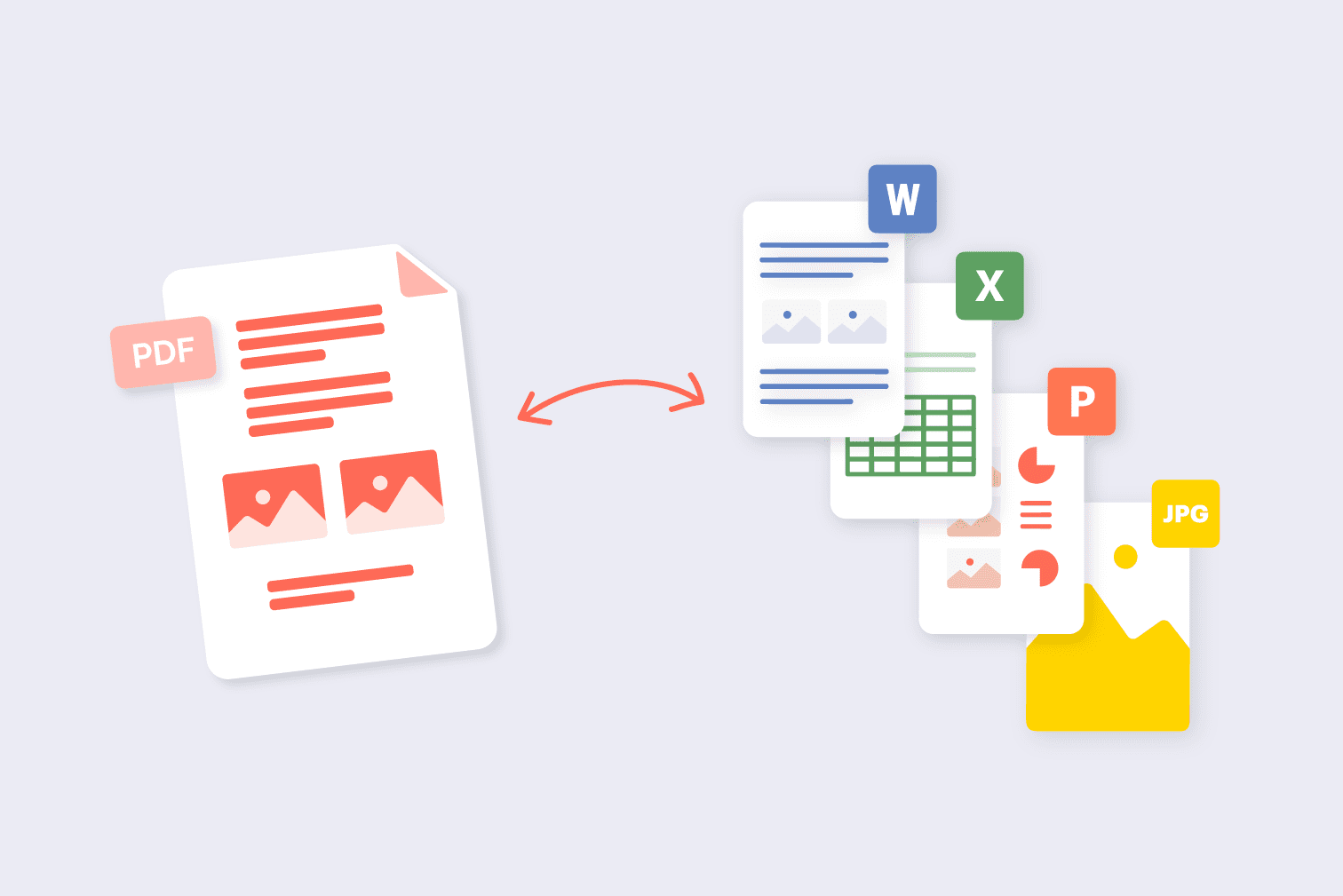
Large PDF documents can take longer to convert and may exceed the file-size limits of some free conversion services.
If you regularly work with large PDFs, a few simple practices can make the process easier.
Check the File Size First
Before starting conversion, check the size of the PDF. Some online tools have restrictions on the maximum file size or number of pages.
Split Large Documents When Necessary
If a conversion tool cannot process the complete file, consider dividing the PDF into smaller sections. Convert each section separately and combine the resulting Word documents afterwards.
Close Unnecessary Applications
When using desktop conversion software, closing unnecessary applications can help free up system resources.
Avoid Repeated Conversions
Converting the same file repeatedly through different tools can create additional formatting problems. Start with a suitable method and review the result before trying another option.
Keep the Original PDF
Always retain a copy of the original PDF. If the converted Word document contains missing content or serious formatting errors, you can return to the original file.
Is It Safe to Use Free Online PDF-to-Word Converters?
Free online converters can be useful, but privacy should always be considered before uploading a document.
When you upload a PDF to an online service, the file may be processed through the service provider's systems. Different providers have different data-handling policies, storage practices, and file deletion procedures.
Before uploading a document, consider the following precautions:
Review the privacy policy: Understand how the service handles uploaded documents.
Check file deletion options: Look for information about temporary storage and automatic deletion.
Avoid sensitive documents: Do not upload confidential contracts, bank statements, identity documents, or private business records without appropriate security assurances.
Use trusted software: Prefer recognised applications with transparent privacy and security information.
Protect important information: If a document contains sensitive data, consider an offline conversion method instead.
For personal or confidential files, desktop software may be a better option because it can reduce the need to upload documents to third-party servers. However, the security of the computer and installed software also matters.
Free PDF-to-Word Conversion vs Paid Conversion Tools
Many users wonder whether a free converter is sufficient or whether they should purchase a premium PDF application.
The answer depends on how frequently you convert documents and how complicated those documents are.
Free tools are generally suitable for occasional conversions, simple reports, assignments, and basic text-based documents. Paid applications may offer additional features such as advanced OCR, batch conversion, document editing, stronger layout preservation, and support for more complex files.
Feature | Free Conversion Tools | Paid Conversion Tools |
|---|---|---|
Basic PDF-to-Word conversion | Often available | Usually available |
Simple text editing | Available after conversion | Available after conversion |
OCR functionality | May be limited | Often more advanced |
Batch conversion | Sometimes restricted | Commonly supported |
Complex layout preservation | Varies by tool | May offer better controls |
Customer support | May be limited | Often included |
Usage restrictions | May include limits | Usually higher limits |
You do not necessarily need a paid tool for every conversion task. If you only convert a few standard PDFs occasionally, free options may be enough.
However, users who regularly process large documents, scanned files, or complex business reports may benefit from more advanced features.
How to Check Your Word Document After Conversion
Once the PDF has been converted into Word, do not assume that the document is ready to use immediately.
A quick review can help identify mistakes that might otherwise go unnoticed.
Follow this checklist:
Check the title: Confirm that the document title and headings are correct.
Review all paragraphs: Look for missing words, duplicated text, and unusual line breaks.
Inspect tables: Verify that the information appears in the correct rows and columns.
Check images: Confirm that all images, logos, and charts are visible.
Compare page layouts: Review margins, page numbers, and page breaks.
Verify numbers and dates: Pay special attention to financial figures, measurements, and important dates.
Check hyperlinks: Confirm that any links retained in the document work correctly.
Save the final version: Store the corrected Word document in an appropriate location.
For important documents, comparing the converted Word file with the original PDF page by page is a useful final step.
Best Practices for Maintaining Document Quality
A good conversion process should focus on more than simply changing the file format. The final Word document should remain readable, accurate, organised, and easy to edit.
Start with a clean PDF whenever possible. Use a conversion method that matches the document type, and avoid unnecessary conversions that may affect text structure.
If the document includes scanned pages, use OCR and carefully proofread the extracted content. If it contains tables or complex formatting, spend additional time checking the layout.
It is also helpful to save the converted file with a clear filename. For example, you can use a document name followed by a version number or date. This makes it easier to identify the latest version when multiple copies exist.
Finally, keep the original PDF separate from the edited Word file. This gives you a reliable reference if you need to restore information or compare the document later.
FAQ's
Yes, many PDF conversion tools can preserve most of the original formatting. However, fonts, tables, images, and page layouts may sometimes require manual adjustments.
You can use Microsoft Word or Google Docs to convert many PDF files into editable Word documents without purchasing additional software.
You need an OCR (Optical Character Recognition) tool to recognise text within scanned PDF pages and convert it into editable content.
Yes, Google Docs can open certain PDF files, extract their content, and allow you to download the converted document in Microsoft Word format.
No, conversion generally creates a separate Word document. Your original PDF remains unchanged unless you manually overwrite or delete it.
Sources and notes
Links the author listed for this post.
This guide is based on general information about PDF conversion methods, document editing, OCR technology, and formatting practices. AltFTool provides useful digital tools and resources to help users simplify everyday online tasks.
More on AltFTool
- AltFTool (opens in a new tab)
altftool.com

Discussion
0 comments