
Understanding where your website visitors come from and how they interact with your content is essential for long-term digital growth. Google Analytics 4 (GA4) serves as the primary industry tool for monitoring web traffic, but navigating its event-driven model requires a clear strategy. Whether you manage a personal site, an e-commerce storefront, or a collection of web app tools, proper configuration ensures you make decisions based on verified data rather than assumptions.
GA4 operates on an event and parameter system to record user interactions. Unlike legacy platforms that calculated metrics strictly through session-based pageviews, modern web tracking measures discrete user actions like button clicks, video plays, and scroll depth. This guide explains how to set up GA4, track high-value metrics, and use your data to expand site visibility in 2026.
Key Metrics to Watch in 2026
To measure performance accurately, move beyond simple visitor counts. GA4 highlights several engagement-focused metrics that provide actionable visibility into user experience:
Engaged Sessions: Sessions lasting longer than 10 seconds, containing two or more page views, or triggering at least one key event.
Engagement Rate: The percentage of total sessions that meet the criteria for engaged sessions. This metric replaces legacy bounce rate figures.
Key Events: High-value interactions designated by the administrator, such as purchase completions, form submissions, or newsletter signups.
User Retention: Reports showing how frequently audiences return to your platform after their initial session across 1-day, 7-day, and 30-day windows.
Setting Up GA4 for Accurate Data Collection
Accurate reporting begins with proper tag installation and configuration. Create your GA4 property within your account console to generate a dedicated Measurement ID formatted as G-XXXXXXXXXX. Embed this tracking tag directly inside your website's HTML <head> section or deploy it using a tag management platform like Google Tag Manager.
Before launching tracking across your domain, verify that your site's metadata and structured header tags are fully optimized using our meta tag generator. Clean HTML metadata ensures search engine indexers and analytics crawlers recognize your domain structure accurately.
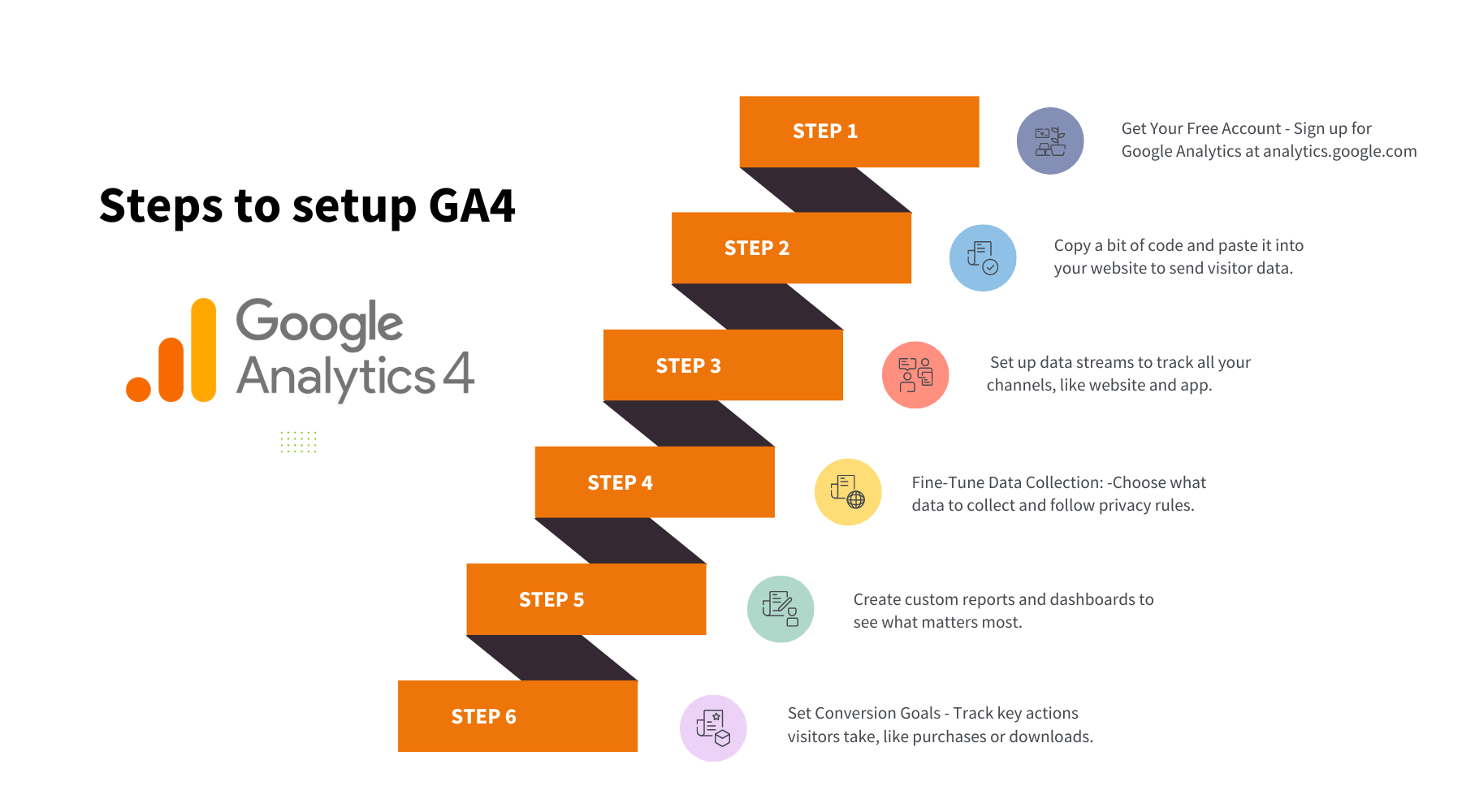
After confirming active data transmission, modify your default property configurations. Under Data Settings > Data Retention, update the default event data retention period from 2 months to 14 months. This step allows you to access year-over-year performance data in your exploration reports. Additionally, set up internal IP exclusions under your data stream settings to prevent your own team's activity from skewing traffic counts.
Standard vs Custom Event Tracking
GA4 measures core interactions automatically via Enhanced Measurement. However, specialized user interactions—such as tool runs or file downloads—require manual event tagging. Understanding how event types differ helps you prioritize your data strategy.
| Event Category | Setup Required | Typical Usage Cases |
|---|---|---|
| Automatically Collected | None (Built into GA4 tag) | First visit, session start, user engagement tracking |
| Enhanced Measurement | Toggle enabled in GA4 panel | 90% scroll depth, outbound links, site search queries |
| Custom Events | JavaScript `gtag` or Tag Manager | Form completions, tool usage, custom call-to-action clicks |
When creating outbound marketing links for email blasts or social media campaigns, append uniform tracking parameters to your URLs. Utilizing our free UTM builder guarantees consistent source, medium, and campaign categorization inside your GA4 acquisition reports.
Google Analytics: 4 Essential Features to Track Website Performance & Growth
1. Track Website Traffic
Google Analytics helps you monitor website visitors, page views, sessions, and traffic trends. Understand how people discover your website and which pages attract the most attention.
2. Understand Audience Behavior
Learn about your visitors, including their location, devices, language, and engagement patterns. These insights help you understand your audience and improve their website experience.
3. Analyze Marketing Performance
Identify traffic sources such as Google Search, social media, paid ads, and referral websites. Compare marketing channels to understand which sources bring valuable visitors.
4. Measure Conversions & Growth
Track important actions such as purchases, registrations, and form submissions. Use these reports to measure website performance and make better data-driven business decisions.
Turning Insights into Traffic Growth
Collecting analytics data is useful only when applied to site optimization. Open the Explore tab in GA4 to build custom conversion funnels. Identify pages with elevated exit rates to discover where visitors drop off, then revise your copy, reduce layout clutter, or improve page rendering speed.
Review your Traffic Acquisition reports monthly to evaluate channel quality. Compare organic search traffic against referral networks and paid channels. Focus your marketing resources on traffic sources that yield high engagement rates and conversion volumes, rather than channels delivering high bounce volumes.
Final thoughts
Successfully using Google Analytics in 2026 relies on establishing clean measurement standards and focusing on user engagement over vanity metrics. By configuring your GA4 stream correctly, defining custom events for vital user actions, and tagging marketing URLs consistently, you gain the precise data required to scale your traffic effectively.
Frequently asked questions
GA4 measures user activity using an event-based model where every interaction is logged as an event with parameters, whereas legacy Universal Analytics relied on session-based pageviews and hit types.
Google sets data retention to 2 months by default for privacy compliance, but administrators can extend event-level data retention to 14 months within property data settings.
Use the GA4 DebugView tool alongside Google Tag Assistant to verify that events fire in real time when visiting your website.
Sources and notes
Links the author listed for this post.
Information sourced from the official Google Analytics Support Documentation and Google Tag Manager resources.
- 1Google Analytics Support Documentation (opens in a new tab)
support.google.com
- 2Google Tag Manager Documentation (opens in a new tab)
support.google.com


Discussion
0 comments